Logins
ReferenceSee where your users sign in from on a map, and filter the same login events in a table
- Last validated: Oct 16, 2026
- 5 minutes to read
-
Contributors

- Overview
- Limitations
- View logins
- Filter logins
- Investigate an unexpected login
- Restrict login locations
- What’s next
Overview
The Logins view shows where users in your org sign in to Cloud Secure Edge (CSE).
The Logins view has two parts: a world map shaded by how many logins came from each country, and a table of the same login events.
Logins shows data you already have. Every login it lists is also in Events, recorded as an Identity Grant event with the message SUCCESS - Banyan ID Token Generated. CSE writes that event when a login succeeds and it issues the user a token. The Events viewer shows the full JSON for each one; Logins shows a count per country and a short table instead, for simplicity of reading across your whole organization.
Use Logins to answer two questions: Where do your users sign in from, and is it unexpected?
Limitations
- The view only reflects Private Access logins. Private Access is the part of CSE that connects your users to resources inside your private network, either through a VPN-style Service Tunnel or to individually named resources, such as internal websites. See the Secure Private Access (SPA) docs for more info. To monitor and manage your users’ internet activity, see ITP Policies and App Discovery.
- Note that only successful logins appear. CSE writes the Identity Grant event only when it issues an ID token, so a failed sign-in does not produce a row or add to a country count.
View logins
In the Command Center, go to Home > Logins. The tab sits between Overview and Events.
A user appears on the map when they sign in through the CSE desktop app. The map plots each login as a pin and shades each country by the number of logins from it. Pins that sit close together cluster into one pin with a count, so a busy region stays readable.
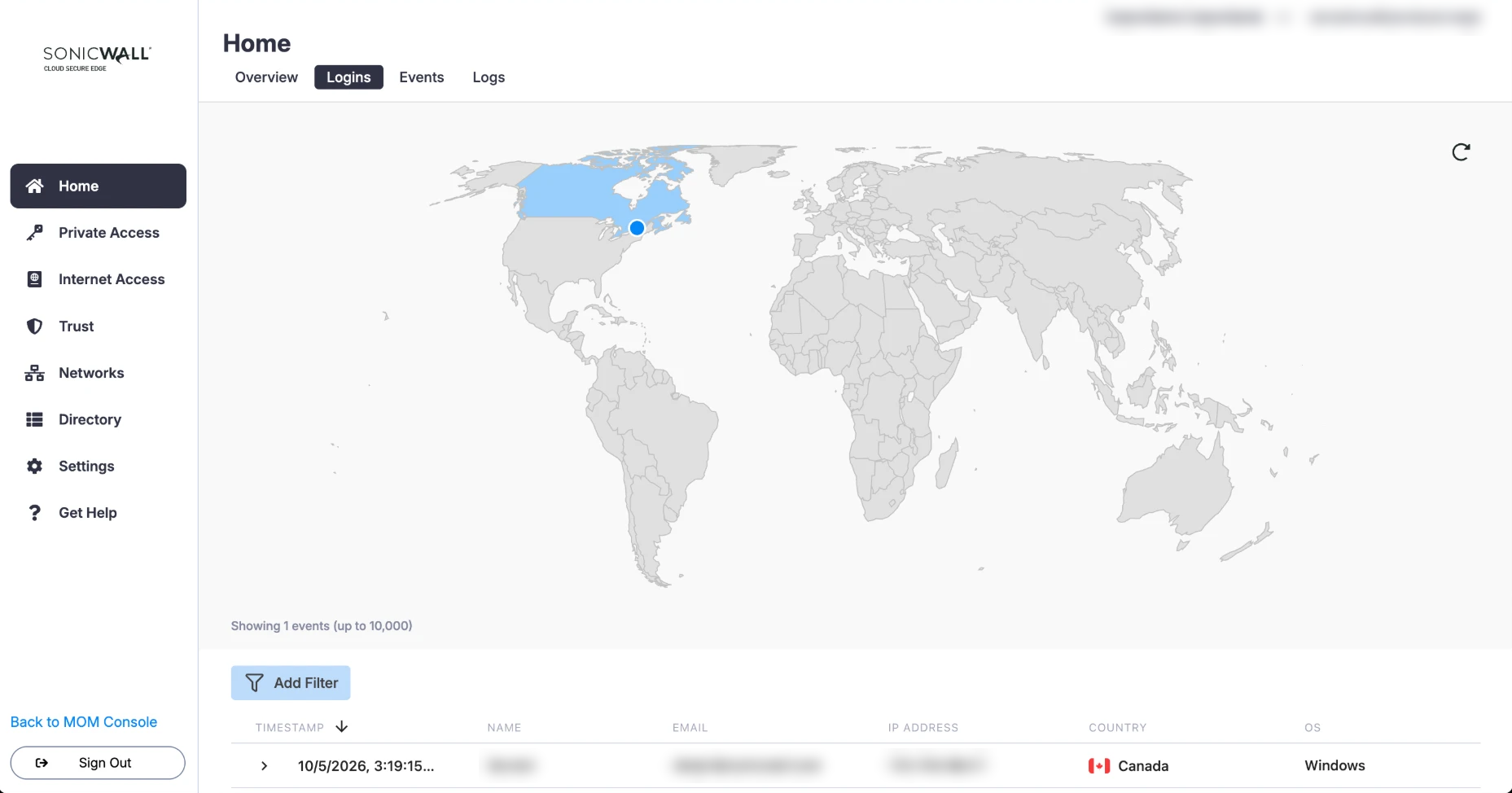
The table lists one row per login, with the time, the user’s name and email address, the IP address they signed in from, the country that IP address resolves to, and the operating system of the device.
Note: The country is where the IP address is registered, not where the user is. CSE derives it from the IP address the device signed in from. See Event Geolocation. A user on a corporate VPN, a proxy, a mobile carrier, or a satellite service such as Starlink appears in the country where that network reaches the internet. Check for one of these before you treat a country as unexpected.
Expand a row to see the raw JSON for that login, along with a written summary of it.
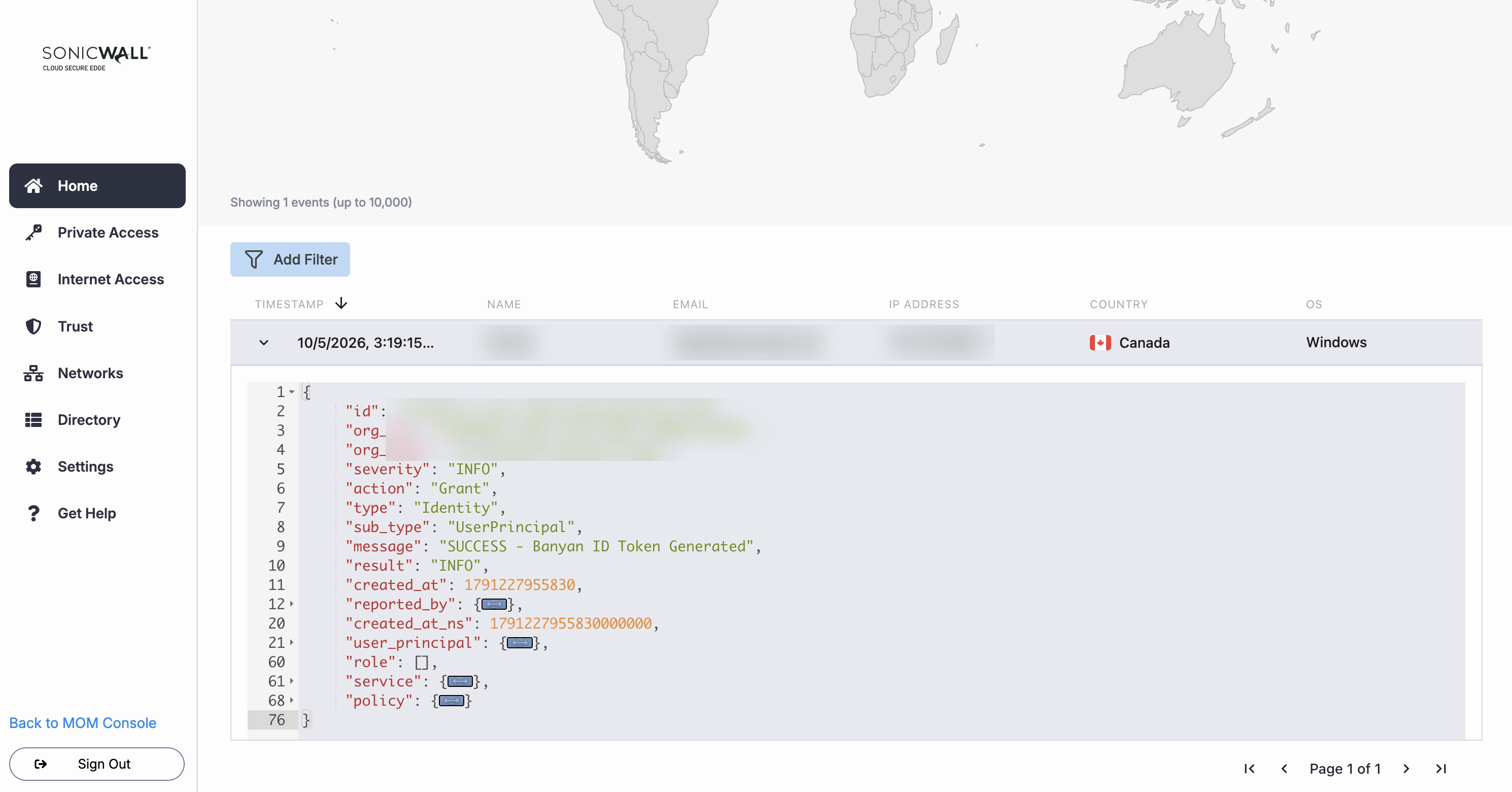
The table shows up to 10,000 events. Narrow the period or the country filter if you reach that limit.
Filter logins
You can filter by country, by period, or by both. The period options are the last 24 hours, the last 7 days, and the last 14 days.
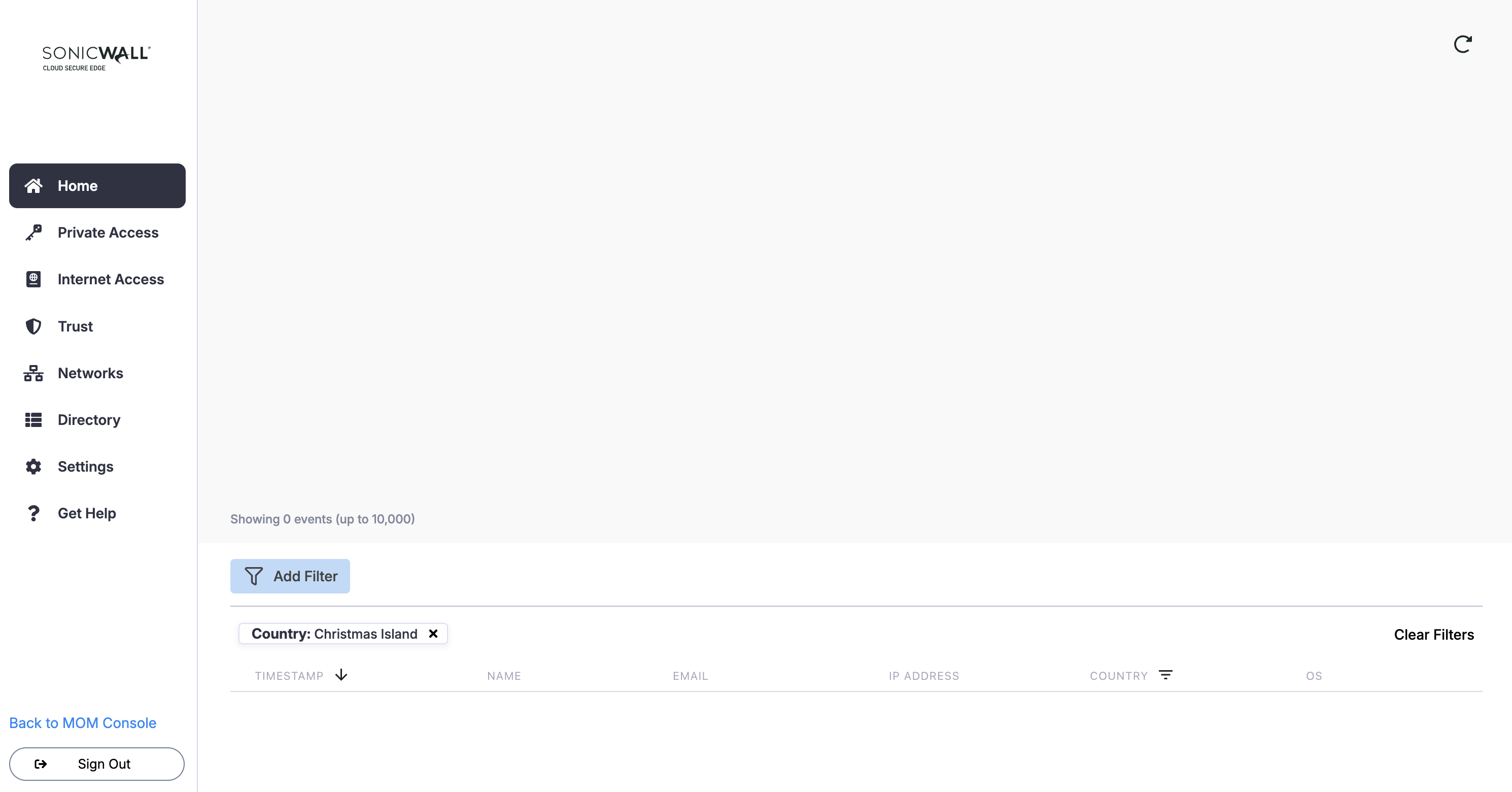
Filters apply to the map and the table together. If you filter to one country, the map shades that country only and the table lists only its logins. The count on the map always matches the rows below it. If no logins match the filter, the map does not display and the table is empty.
Note: Logins has no export. Every login is also an Identity Grant event, so to keep login data longer than 14 days or send it to your SIEM, export events instead. See Export and Retain Events.
Investigate an unexpected login
Use these steps when a country on the map, or a login in the table, does not match what you know about your users.
1. Filter by the country you want to check, and set the period to the last 14 days to see every login from it.
2. Expand each row in the table. Note the user, the IP address, the operating system, and the time of the login.
3. Decide whether the user’s network explains the country. A VPN, proxy, mobile carrier, or satellite service can place a user in a country they are not in. If the IP address belongs to one of these networks, the login is probably not unexpected.
4. In Events, filter by User Email for the same user. Check which devices they used and what they accessed after they signed in.
5. Contact the user to confirm whether they signed in from that location.
6. If the user did not sign in, treat the account and the device as compromised:
- Ban the device. CSE revokes its Device Certificate, so the device can no longer reach your resources and cannot register again.
- Ask your identity provider (IdP) administrator to reset the user’s credentials. The sign-in passed IdP authentication, so the attacker could have the user’s credentials.
7. If the login is legitimate and the user signs in from that country regularly, add the country to the allowed list when you configure the Device Geolocation Trust Factor.
Restrict login locations
Logins has no controls of its own. To restrict where users can connect from, add the Device Geolocation Trust Factor, which is where the procedure lives.
Review Logins before you add the factor, so you know which countries your users actually sign in from. If you add the factor first and leave a country off the allowed list, every device in that country fails the factor and drops to the Trust Level you set as its Trust Effect. If your access policies require a higher Trust Level, those users lose access, including legitimate ones you did not know about, such as an employee who works remotely abroad or one who is traveling. Logins shows at most the last 14 days, so check it more than once if your users travel less often than that.
What’s next
- Events for the full record behind each login
- Event Geolocation for how CSE derives a location from an IP address
- Device Geolocation for restricting where devices connect from