Grant CSE Access to 3rd-Party Contractors Using Google Workspace
- Last validated: Aug 3, 2026
- Overview
- Pre-requisites
- Identity and Group Provisioning
- Application and Policy Configuration
- Validation
- Managing Contractor Credentials and Security Policies
- Revoking Access
Overview
Use this guide to provision secure identities for external contractors using Google Workspace and to grant them access to resources protected by SonicWall Cloud Secure Edge (CSE).
This guide outlines how to leverage Cloud Identity Free to create lightweight accounts for contractors, organize them into Google Groups, and pass group membership to CSE via SAML, all without consuming paid Google Workspace licenses.
Pre-requisites
Before you begin, review the following requirements and limitations:
Google Workspace domain: You must have an active Google Workspace domain. To add contractors without assigning paid licenses, enable the Cloud Identity Free subscription under Billing in the Google Admin console.
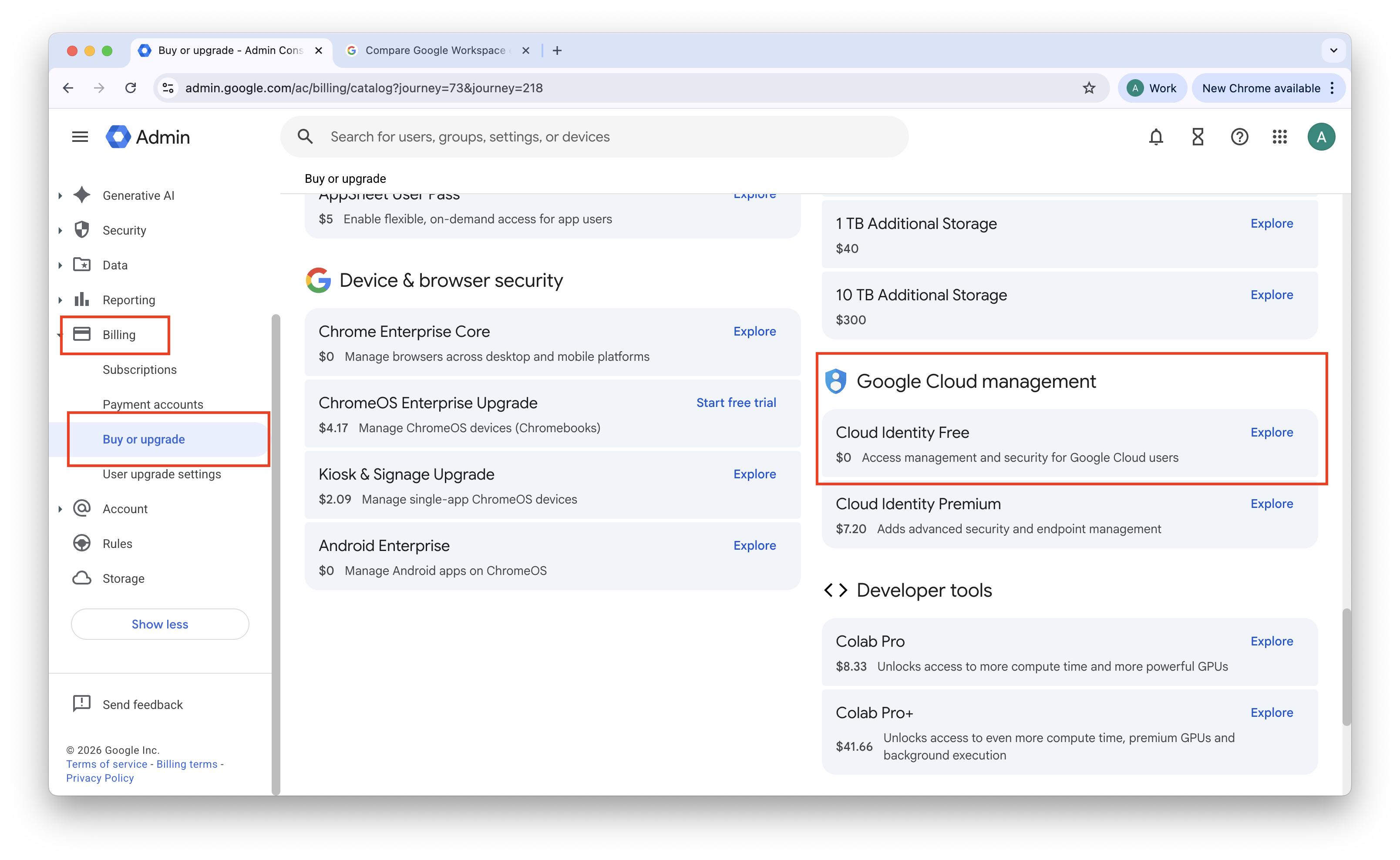
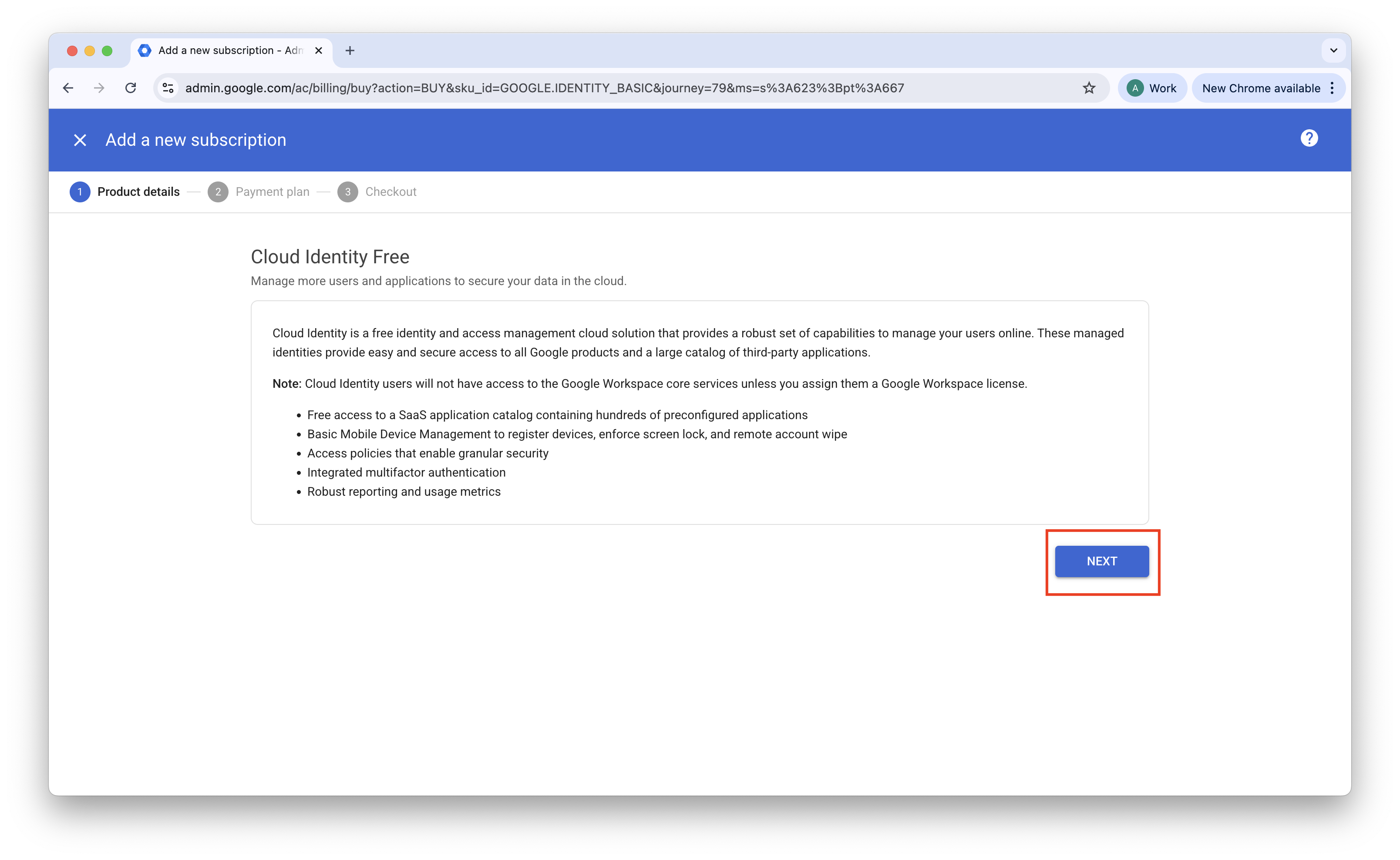
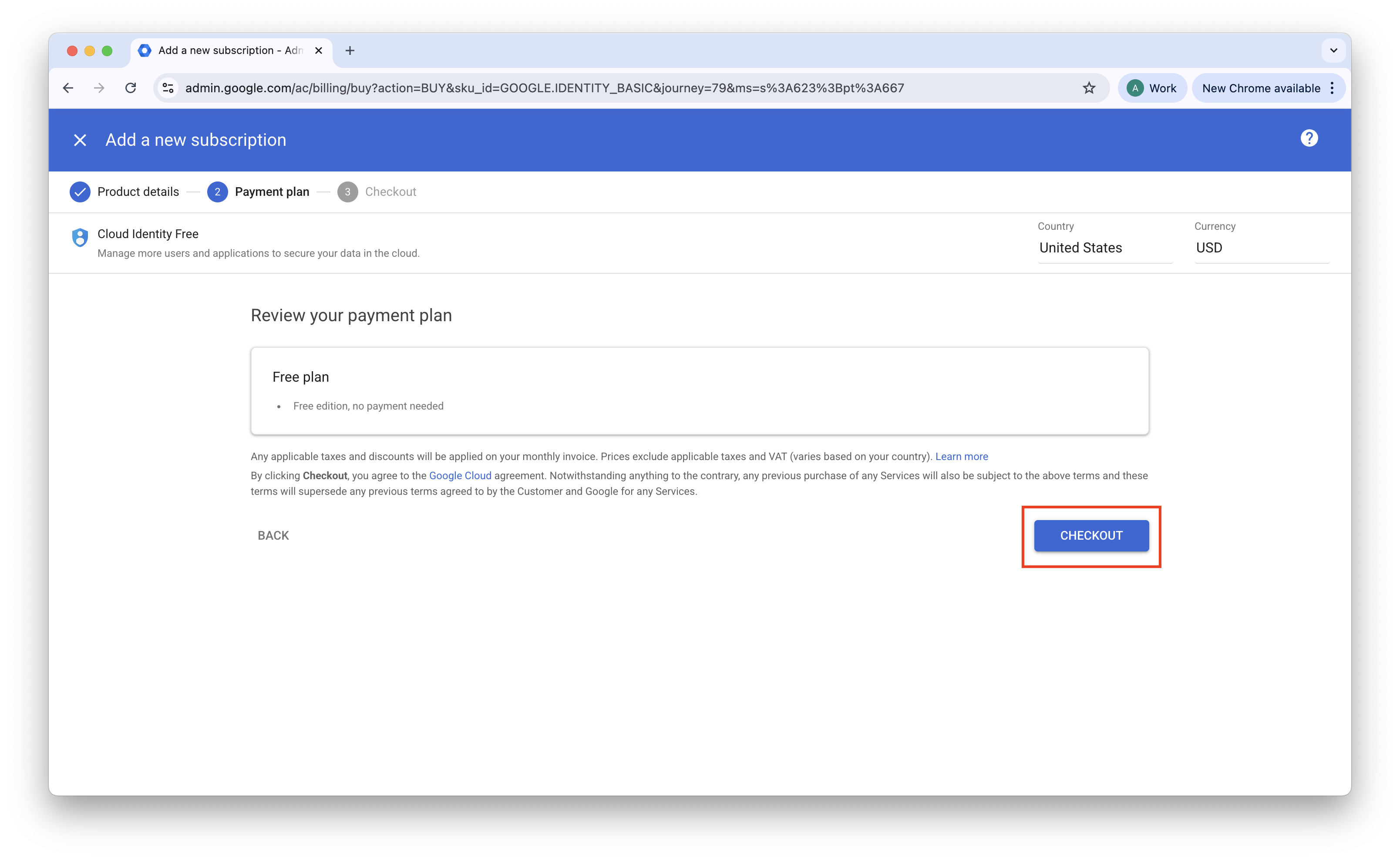
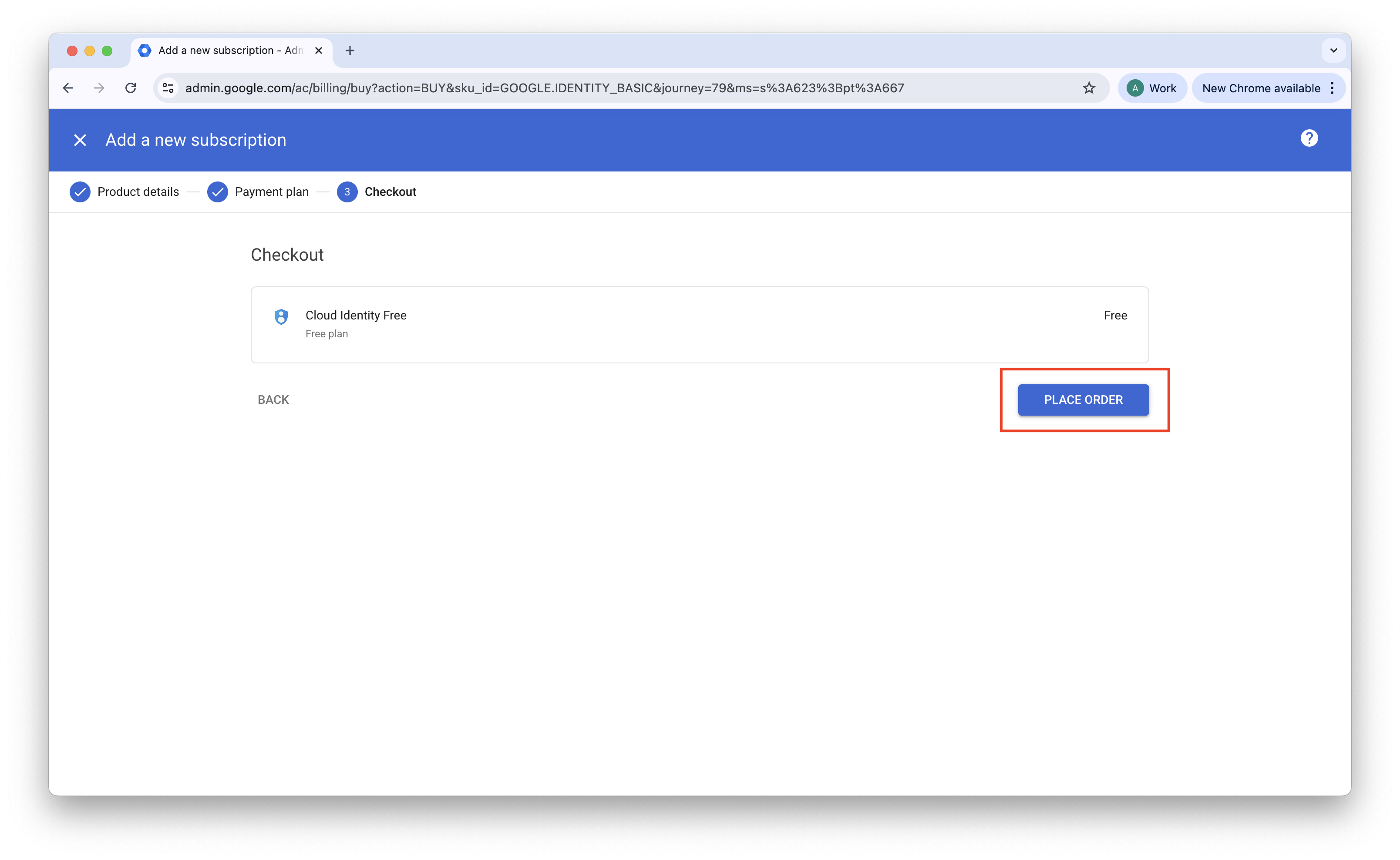
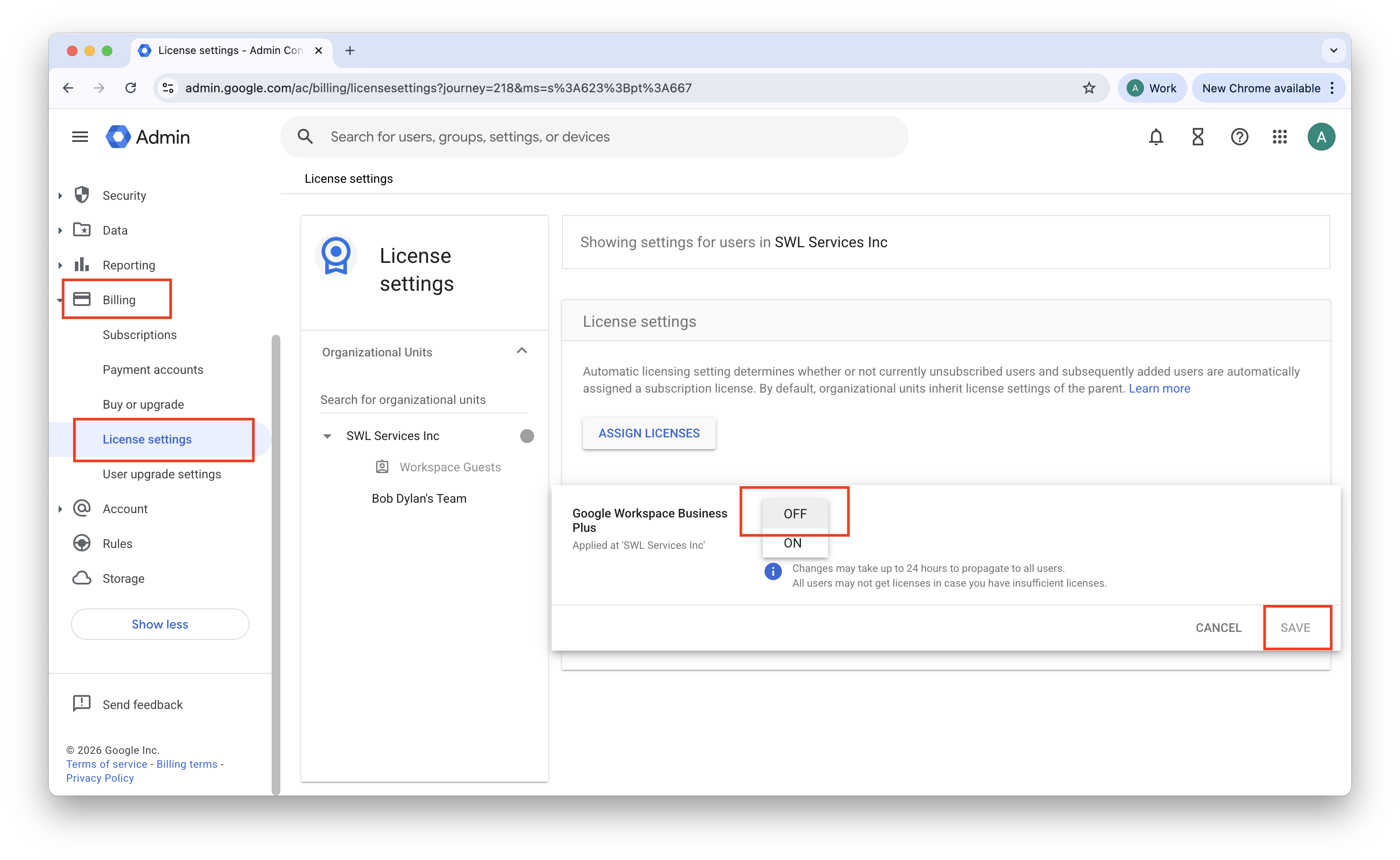
Toggle off paid licenses: In order to assign only the Cloud Identity Free license to a new user, ensure that Automatic Licensing is turned off in your org. Navigate from Billing > License settings, hover over your paid licensing, click the edit button, toggle off Automatic Licensing, and then save your changes.
Cloud Identity Free license cap. Google provisions a default limit of 50 Cloud Identity Free licenses. If you need more, submit a support ticket to Google Workspace support requesting a cap increase. Increases up to several thousand licenses are typically granted when a valid business reason is provided (for example, provisioning identities for external contractors who access internal tools).
SAML group limits. Unlike some identity providers that include a full group list in the SAML response by default, Google requires you to explicitly select which groups to include. You can map up to 75 groups per user in a single SAML response.
Identity federation (optional). If you want contractors to authenticate through their own organization’s identity provider (such as Okta or Entra ID), configure Inbound SAML in Google Workspace. Without this configuration, contractors authenticate with a password and two-step verification managed directly by your Google Workspace instance.
Identity and Group Provisioning
Step 1 — Provision contractor accounts
Create a Cloud Identity Free account for each contractor in your directory.
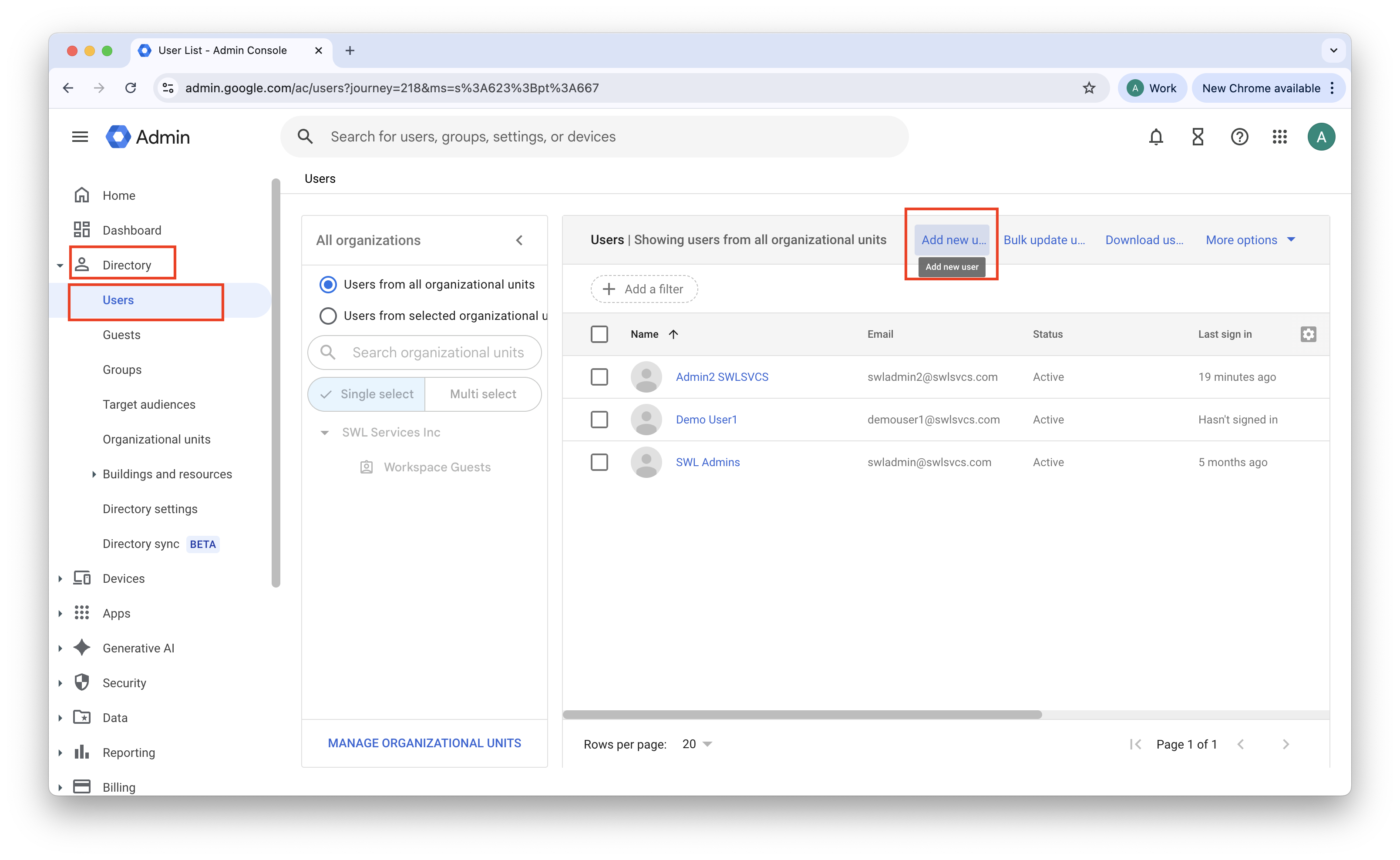
1. In the Google Workspace Admin Console, navigate from Directory > Users, and select Add new user.
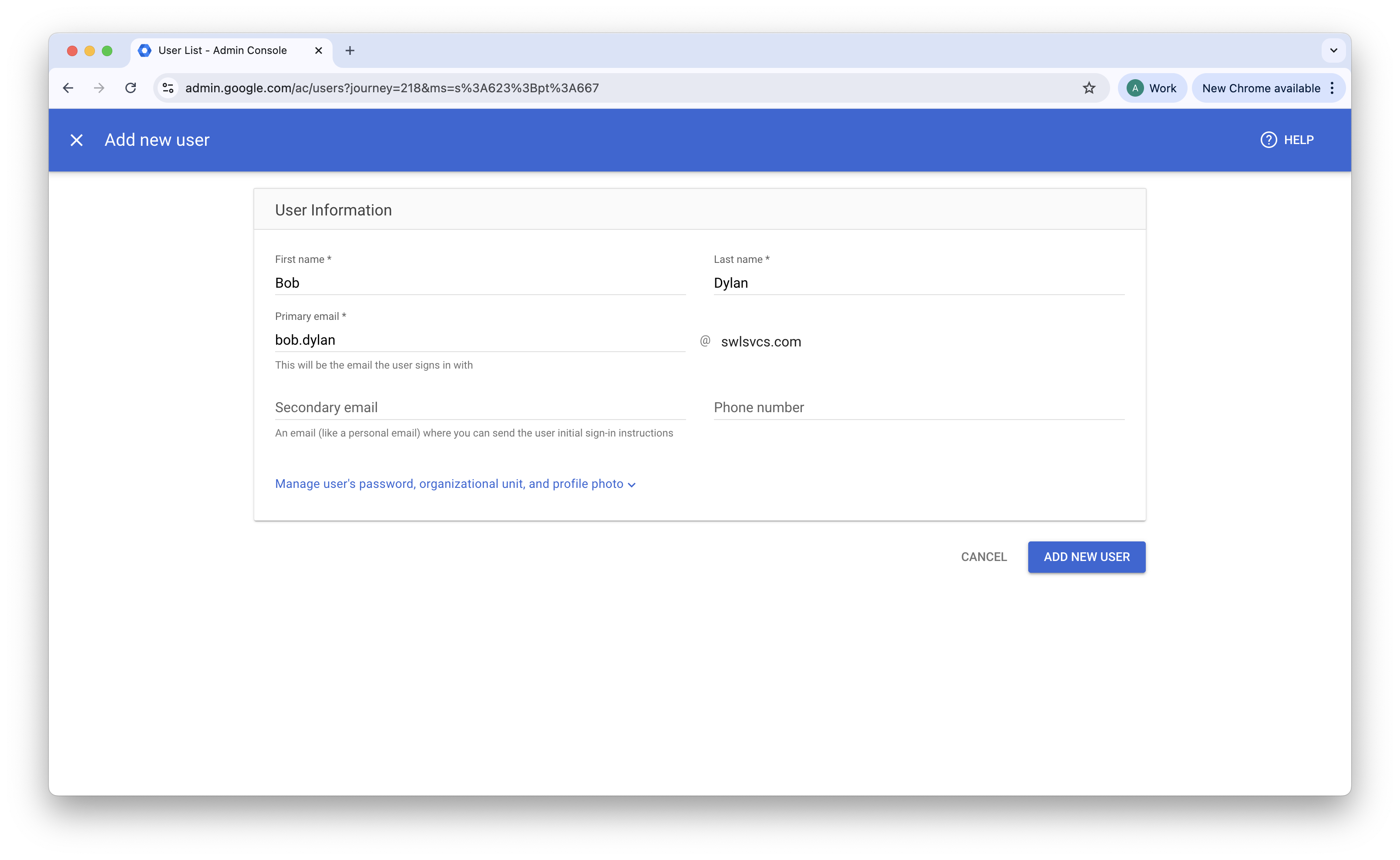
2. Enter the contractor’s details (for example, contractor-name@yourdomain.com). Save the generated password.
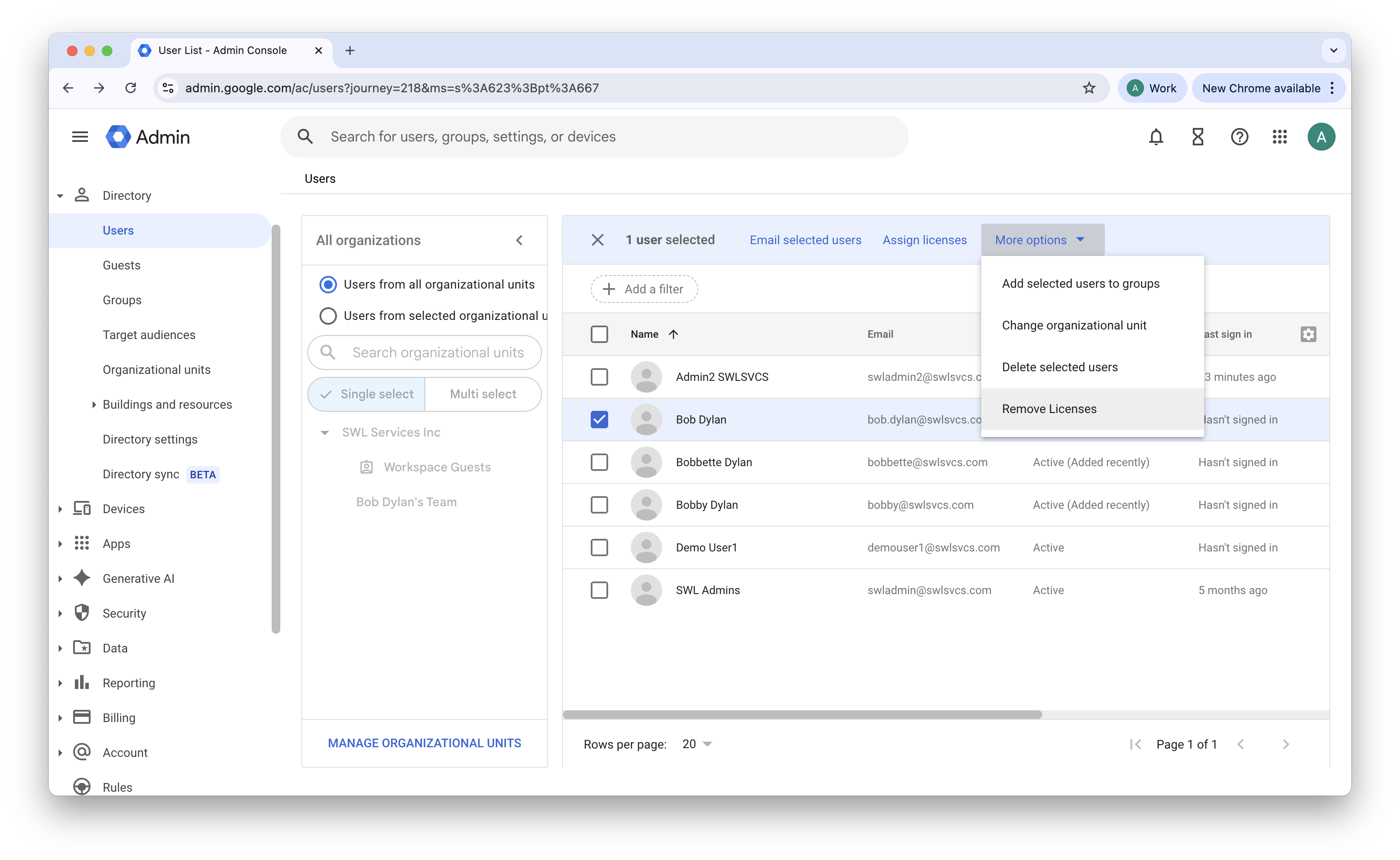
3. Navigate from Directory > Users, check your new user, and select Remove Licenses. De-select the paid license and keep the Cloud Identity free license checked.
4. Provide the saved temporary password to your contractor so they can sign in, accept the terms, and set up two-step verification.
Important: Verify that each contractor account is assigned a Cloud Identity Free license rather than a paid Google Workspace license.
Step 2 — Create contractor groups
Use Google Groups to organize contractors by company or access level, similar to how security groups are used in other identity providers.
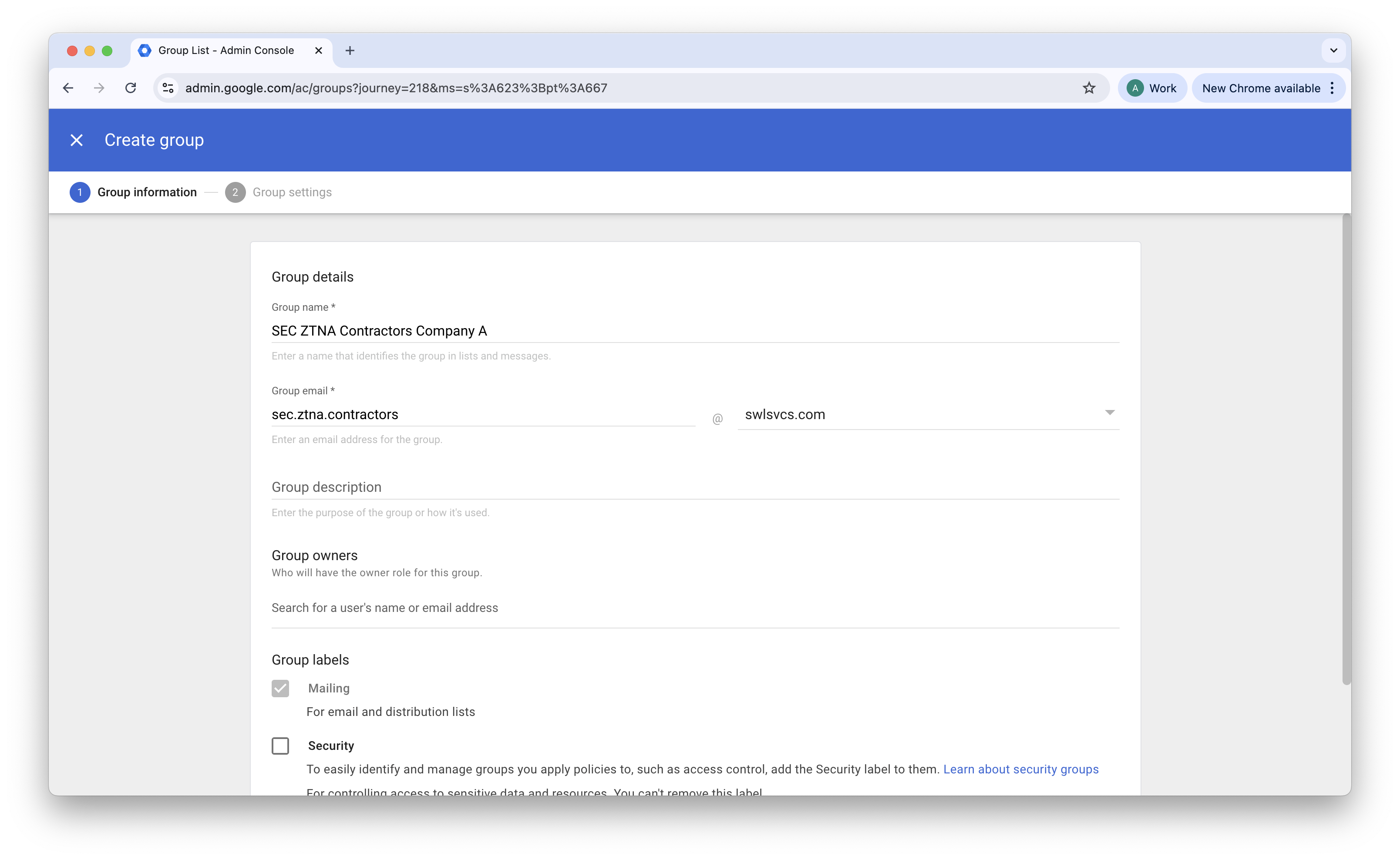
1. In the Google Admin console, navigate to Directory > Groups.
2. Select Create Group.
3. Name the group descriptively (for example, SEC-ZTNA-Contractors-CompanyA@yourdomain.com).
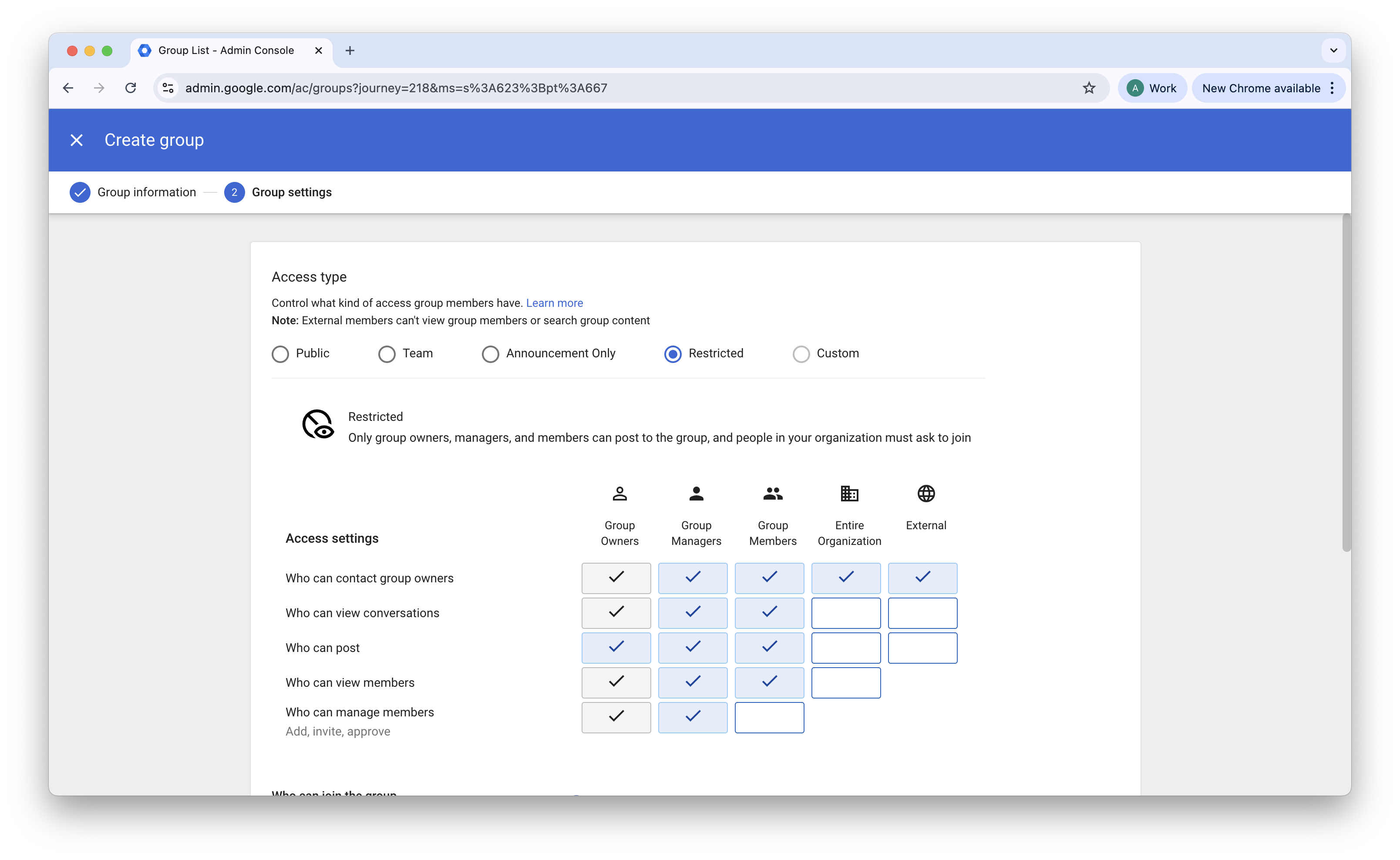
4. Set the access type to Restricted so that only administrators can manage membership.
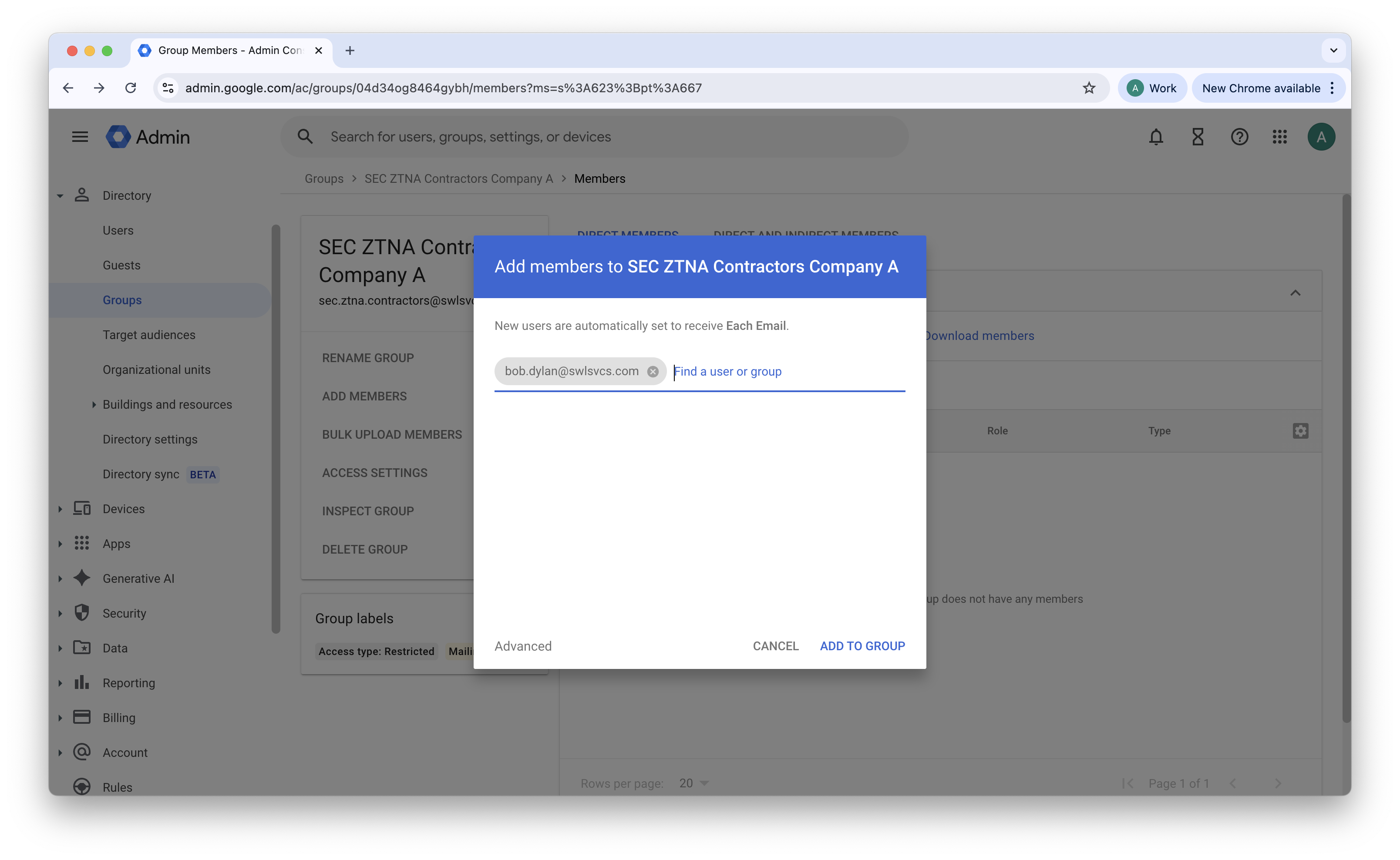
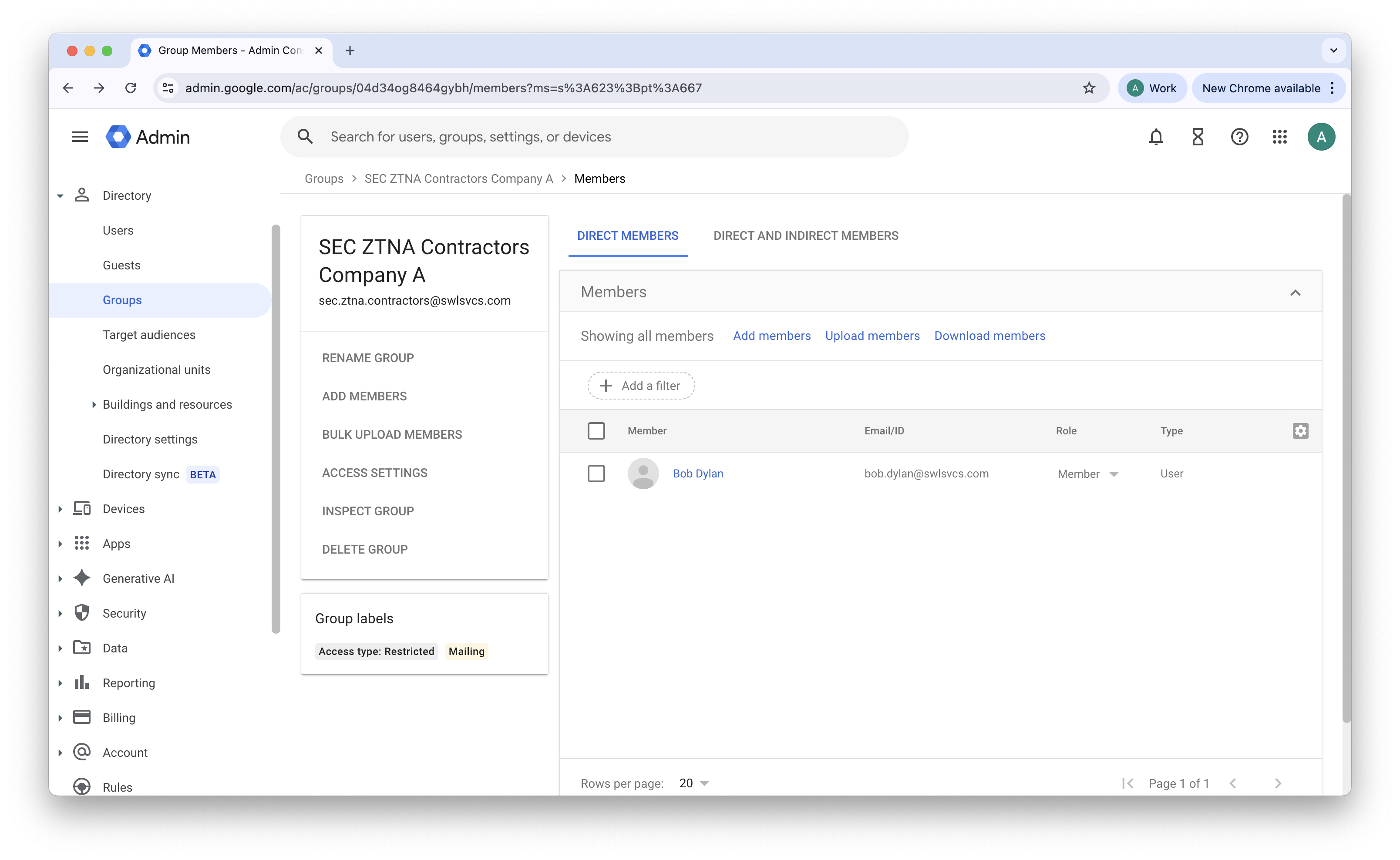
5. Add the contractor user created in Step 1 to the new group.
Application and Policy Configuration
Step 3 — Configure Google Workspace as the IdP for CSE
1. Set up a custom SAML application in Google Workspace to pass authentication and group membership information to CSE: Follow the steps outlined in our Configure Google Workspace to manage your directory of users in Cloud Secure Edge doc.
Step 4 — Configure roles and policies in CSE
1. Create roles and access policies in CSE that reference the Google Group identifiers: Follow the steps outlined in our Manage Roles doc.
Note: Google uses the group email address as the identifier in SAML assertions. This differs from some providers that use an alphanumeric object ID. Ensure that you enter the full email address of the Google Group (for example, SEC-ZTNA-Contractors-CompanyA@yourdomain.com).
2. Create a policy: In the CSE Command Center, navigate from Access Policies > Policies, and create a new policy Define the target resource (internal application or server), and assign the role you just created to this policy.
Validation
Once configuration is complete, the contractor experience should be as follows:
1. The contractor opens the SonicWall CSE desktop app or navigates to a protected web resource, and they are redirected to the Google Workspace login page.
2. The contractor authenticates with their Cloud Identity credentials (provided to them by the admin) and completes two-step verification.
3. Google generates a SAML token containing the contractor’s group membership.
4. CSE receives the token, matches the group to the assigned role, and grants the user access to the designated resources.
Managing Contractor Credentials and Security Policies
Since contractor accounts are managed natively within your Google Workspace directory via Cloud Identity, admins retain full control over the contractor’s security lifecycle without needing a separate credential management tool.
-
Enforce Password Complexity and Expiration: By placing contractor accounts into a dedicated Organizational Unit (OU), you can use Google’s built-in security settings to enforce strict password policies. This includes mandating minimum lengths, requiring character complexity, and setting strict password expiration intervals to ensure regular credential rotation.
-
Admin and Self-Service Password Resets: If a contractor is locked out or a credential compromise is suspected, admins can manually reset the password from the user’s profile in the Google Admin console. To reduce helpdesk overhead, admins can also enable Google’s Self-service password recovery, allowing contractors to securely reset their own passwords using a pre-configured recovery email or phone number.
-
Instant Access Revocation and Device Banning: In the event of offboarding or an active security incident, you can instantaneously terminate a contractor’s access to all CSE-protected resources by removing the user from their designated Google Group or suspending their Cloud Identity account.
Revoking Access
To revoke a contractor’s access, take either of the following actions in the Google Admin console:
- Remove the user from the Google Group to revoke access to resources associated with that group’s role.
- Suspend the Cloud Identity Free account to revoke all access immediately.
Admins can also ban contractors’ devices in the CSE Command Center.