Use IdP Federation to Enforce Zero Trust Policies on All SaaS Applications Integrated With Microsoft Entra ID
Use federation in Microsoft Entra ID to enforce Cloud Secure Edge (CSE) policies and enable passwordless authentication for Microsoft 365 and other Entra-integrated SaaS applications
- Last validated: Aug 3, 2026
- 25 minutes to read
-
Contributors

- Overview
- How It Works
- Critical warning: prevent tenant lockout before you federate
- How passwordless authentication works
- Onboarding new users with Staged Rollout
- Limitations
- Prerequisites
- Steps
- Required Microsoft Graph permissions
- References
Overview
This guide explains how to configure Microsoft Entra ID (formerly Azure AD) with Cloud Secure Edge so that policy enforcement and passwordless authentication apply to any Entra-integrated SaaS application, including Microsoft 365. The end result is that CSE becomes the primary authentication source for the federated domain, allowing CSE device posture and access policy to gate every Entra-integrated application while Entra continues to own MFA and SSO.
Doc status: CSE-side steps were re-verified against the CSE console on 2026-07-14, and third-party console steps were updated against vendor documentation on the same date. The third-party IdP console steps follow the vendor’s own documentation and should be confirmed against the live admin console, which can change without notice.
How It Works
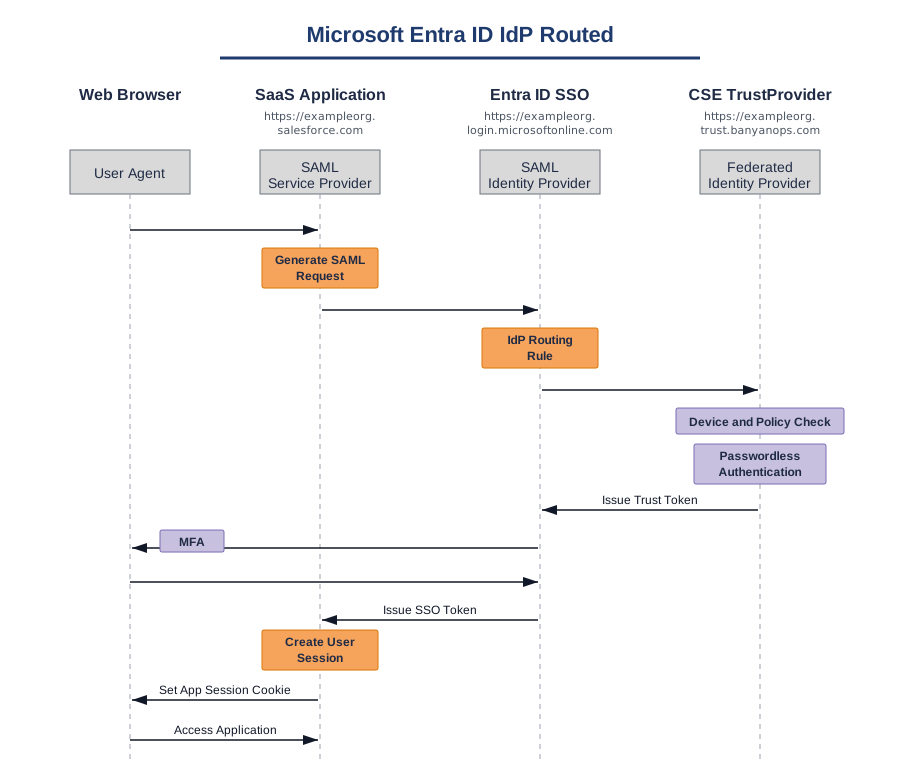
In the IdP-routed authentication flow, Microsoft Entra ID federates authentication requests to the CSE TrustProvider. CSE performs device and policy checks, optionally completes passwordless authentication, and issues a trust token back to Entra ID. Entra ID then completes its own MFA (when required by Conditional Access) and returns an SSO token to the SaaS application.
Values to exchange
The federation is a SAML trust between CSE and Entra ID. The following values, all generated or set in the steps below, must be exchanged between the two systems so each side recognizes the other. Use this table to confirm a value landed in the correct field before you activate federation.
| Value | Source | Where it goes |
|---|---|---|
Redirect URL https://login.microsoftonline.com/login.srf |
Entra ID (fixed Microsoft endpoint) | CSE SaaS app, Redirect URL (Step 2.4) |
Audience URI urn:federation:MicrosoftOnline |
Entra ID (fixed Microsoft value) | CSE SaaS app, Audience URI (Step 2.5) |
CSE SAML metadata (BanyanMetadata.xml) |
CSE SaaS app metadata URL (Step 3.2) | Entra ID, Parse metadata file when adding the SAML/WS-Fed IdP (Step 3.6) |
Federating IdP domain <ORG_NAME>.trust.banyanops.com |
CSE TrustProvider | Entra ID, Domain name of federating IdP (Step 3.5) |
$PassiveLogOnUri / $IssuerUri (CSE SAML SSO endpoint) |
CSE metadata (Step 3) | Entra ID federation config PassiveSignInUri / IssuerUri (Step 4.2) |
$SigningCert (X509 certificate from BanyanMetadata.xml) |
CSE metadata (Step 3) | Entra ID federation config SigningCertificate (Step 4.2) |
Critical warning: prevent tenant lockout before you federate
Federating an Entra ID domain to CSE turns CSE into the identity provider for that domain. Once federation is active, every user in the federated domain is redirected to CSE for primary authentication. If those users do not yet have the CSE desktop app installed, a valid device certificate, and a registered device, they cannot sign in to Microsoft 365 or any other Entra-integrated SaaS application.
Before you run the federation command, complete each of the following safeguards:
- Create at least two emergency access (break glass) administrator accounts that live on the tenant default
*.onmicrosoft.comdomain. Because that domain is never federated, these accounts always authenticate against Entra ID directly and remain usable if CSE, the IdP path, or the federated domain configuration is unavailable. Follow Microsoft’s guidance in “Manage emergency access admin accounts” for storage, monitoring, and credential hygiene. As a nice to have, protect these accounts with a phishing resistant method such as FIDO2 security keys or certificate based authentication. - Configure Entra ID Staged Rollout and place at least one pilot user in scope before you federate the full domain. Staged Rollout users bypass the federation redirect and authenticate against Entra directly. Use this group both to validate the configuration on a small set of users and as an ongoing bypass path for newly enrolled users and short term recovery scenarios. Staged Rollout is available only for hybrid identities: users must be provisioned into Entra ID through Microsoft Entra Connect, and password hash synchronization, pass-through authentication, or certificate based authentication must be enabled first. It does not apply to cloud-only users. Group membership changes can take up to 24 hours to take effect, and the feature supports at most 10 groups with up to 50,000 users each; nested and dynamic groups are not supported. See “Microsoft Entra Connect: Cloud authentication via Staged Rollout.”
- If the tenant is cloud-only (users are not synchronized from on-premises Active Directory), Staged Rollout is not available and there is no bypass path. Break glass accounts on the
*.onmicrosoft.comdomain and a tested rollback procedure, including usable cloud passwords for users, are the only safety net. Register pilot devices with CSE before federating, and validate the rollback procedure before you begin. - Document the rollback command in advance. To revert a domain from federated back to managed, run
Update-MgDomain -DomainId <domain> -AuthenticationType Managed. The conversion back to managed can take up to two hours to complete, and users need usable cloud credentials for managed sign in afterward: enable password hash synchronization in advance, or plan to assign new passwords to affected users as part of the rollback. Keep the command and a tested admin account ready before federation is applied.
Failure to provision break glass accounts and a Staged Rollout group (or, in a cloud-only tenant, a tested rollback plan) is the most common cause of full tenant lockout when federation is enabled for the first time.
How passwordless authentication works
When a domain is federated to CSE, the CSE device certificate becomes the primary authentication factor for the user. The user does not type a password. Authentication succeeds when the following are true:
- The device is registered with CSE.
- The CSE desktop app or mobile app is installed and reports the device serial.
- The user identity inside the certificate matches the Entra user, and the certificate has not been revoked.
- The device passes the bound trust profile.
CSE returns a SAML assertion to Entra ID confirming that the user is authenticated. This satisfies the password requirement, which is why the experience is described as passwordless.
Multi-factor authentication is not removed by federation. If Conditional Access in Entra requires MFA for the application the user is reaching, Entra will still prompt for the second factor configured on the user account (Authenticator app, FIDO2 key, OATH token, and so on). The FederatedIdpMfaBehavior value used in the federation command controls how Entra treats MFA claims from CSE.
rejectMfaByFederatedIdp(recommended). Entra always performs MFA itself and ignores any MFA claim from CSE. This keeps MFA enforcement, policy, and reporting consolidated in Entra Conditional Access, which is the cleanest model for most deployments.acceptIfMfaDoneByFederatedIdp. Entra accepts MFA performed at CSE when present, and otherwise prompts the user for MFA at Entra. Use this only when CSE is configured to assert MFA and you want to avoid a second prompt.enforceMfaByFederatedIdp. Entra requires MFA to be asserted by CSE. Choose this only if CSE is configured to perform MFA itself and Entra should never prompt.
In short: the CSE device certificate replaces the password, and Entra continues to own MFA.
Is the device certificate a theft risk? Generally less than a password. The certificate’s private key is generated on and bound to the enrolled device and stored in the operating system’s protected key store — hardware-backed (TPM or Secure Enclave) where available — and is non-exportable, so it cannot simply be copied to another machine. Authentication also requires the request to come from a registered device that passes its bound trust profile, so a copied identity alone does not grant access. If a device is lost or compromised, revoking it in CSE invalidates the certificate immediately (see the revocation check above), and Entra continues to enforce MFA on top.
Onboarding new users with Staged Rollout
Once a domain is federated, new users cannot enroll the CSE app the normal way, because their first authentication attempt is redirected to CSE and CSE has no certificate for them yet. Staged Rollout is the supported way out of this loop.
Staged Rollout works only for hybrid identities: users provisioned into Entra ID through Microsoft Entra Connect, with password hash synchronization, pass-through authentication, or certificate based authentication enabled first. It does not apply to cloud-only users. In a cloud-only tenant, register devices before federating the domain or use MDM zero touch deployment (see “Limitations”); break glass accounts and a tested rollback are the only recovery paths.
The recommended enrollment flow is:
- Create or identify an Entra group named, for example,
CSE-Staged-Bypass. Staged Rollout supports at most 10 groups with up to 50,000 users each; nested and dynamic groups are not supported. - In the Microsoft Entra admin center, navigate to Entra ID > Entra Connect > Connect sync, then under Staged rollout of cloud authentication select Enable staged rollout for managed user sign-in, and add the group to the staged rollout scope. This causes members of the group to authenticate against Entra ID directly instead of being redirected to CSE.
- Add the new user to the
CSE-Staged-Bypassgroup before enrollment begins. Group membership changes can take up to 24 hours to take effect, so plan enrollment accordingly. - Have the user install the CSE desktop app or mobile app and complete the manual enrollment flow with an invite code. Because the user is in the staged rollout group, Entra accepts their password and CSE issues a device certificate.
- Once enrollment is confirmed and the user can authenticate end to end, remove the user from
CSE-Staged-Bypass. The removal can take up to 24 hours to propagate, after which the user transitions to the federated, passwordless flow at the next interactive sign in.
The same group can host emergency access accounts and short term troubleshooting accounts. Treat membership as privileged and audit it on the same cadence as other privileged group memberships.
Limitations
Based on current Entra ID operational models, capabilities have the following limitations, listed below.
- With passwordless authentication enabled, devices must be registered using MDM zero touch deployment, or onboarded individually using the Staged Rollout flow described above. See Distribute desktop app.
- Domains in Entra ID must be federated entirely with CSE. Domains cannot be segmented.
- All devices accessing applications federated through Entra ID with passwordless enabled must be registered with CSE.
- User and device groups cannot be segmented by different authentication protocols within a federated domain.
Prerequisites
Before proceeding, complete the following:
- Configure Entra ID for CSE services.
- Configure Entra ID for CSE device registration.
- Configure zero touch deployment with your MDM provider.
- Provision break glass admin accounts and a Staged Rollout group as described in “Critical warning: prevent tenant lockout before you federate.”
Steps
Step 1: Create a web policy
1.1 Open the policy creation screen.
Navigate to Private Access > Access Policies > + Create Policy, then select Web Policy.
1.2 Enter a policy name and description.
1.3 Set the recommended policy attributes.
- Role:
ANY(specific user and device assignment for SaaS applications is typically done at the IdP). - TrustLevel:
HighorMedium, when all devices are registered with the CSE app.
1.4 Create the policy.
Select Create Policy.
Step 2: Create a SaaS application in CSE
Microsoft does not support OIDC for Entra federation; SAML is required.
2.1 Open the SaaS Apps publisher.
Navigate to Internet Access > SaaS Apps, and select Publish SaaS Application.
2.2 Choose the IdP Routed template.
Select the IdP Routed template for Entra ID to route to CSE.
2.3 Name the app and select the protocol.
Name the SaaS app, and select SAML as the authentication protocol.
2.4 Set the Redirect URL.
Enter https://login.microsoftonline.com/login.srf as the Redirect URL.
2.5 Set the Audience URI.
Enter urn:federation:MicrosoftOnline as the Audience URI.
2.6 Attach the web policy.
Attach the web policy from Step 1 and set it to Enforcing. Enforcing mode is used here because passwordless device certificate authentication is mandatory for Entra federation and has no password fallback; phased rollout in this flow is achieved with Entra Staged Rollout (see “Onboarding new users with Staged Rollout”), not with the policy’s Permissive mode.
2.7 Enable passwordless authentication.
Expand Advanced Configurations (optional) and enable Passwordless Authentication. Although labeled optional, this setting is required for Entra federation. For background, see Passwordless Authentication.
2.8 Register the app.
Select Register.
Step 3: Create CSE as an Identity Provider in Entra ID
This registers CSE as a federated SAML identity provider that Entra ID trusts for the domain. These steps assume no prior third party identity provider is configured in the Entra tenant. If one is configured, refer to Microsoft documentation for the current best practices. The Microsoft Entra admin center is a Microsoft-owned console whose layout and labels can change without notice; treat Microsoft’s own documentation (see References) as the source of truth for the current Entra UI. Note that Microsoft documents this console area primarily for B2B guest federation; the domain trust that redirects sign ins for the federated domain is established by the Graph configuration in Step 4.
3.1 Open the CSE SaaS app.
Navigate to the new CSE SaaS app inside the CSE command center and open its Overview tab. The generated federation values are shown on the post registration Almost Done! screen and remain available afterward on the Overview tab under SAAS CLIENT APPLICATION CONFIGURATION.
3.2 Download the metadata file.
Copy the metadata URL from the Overview tab and paste it into a new browser tab. The file should download. Save it as BanyanMetadata.xml. If the file does not download, copy the XML from the page into a new file with the same name.
3.3 Open All identity providers in Entra.
In the Microsoft Entra admin center, navigate to External Identities > All identity providers, and select the Custom tab.
3.4 Add a new SAML/WS-Fed IdP.
Select Add new > SAML/WS-Fed. The creation page is titled New SAML/WS-Fed IdP.
3.5 Provide the IdP details.
- Display Name: SonicWall CSE Trust Provider
- Identity Provider Protocol: SAML
- Domain name of federating IdP:
<ORG_NAME>.trust.banyanops.com
3.6 Upload the metadata file.
Under Select a method for populating metadata, choose Parse metadata file, then upload BanyanMetadata.xml from Step 3.2.
3.7 Save the configuration.
Select Save. The CSE Trust Provider will appear in the SAML/WS-Fed identity providers table.
Step 4: Configure the Entra ID custom domain with a federated identity source
Microsoft retired the MSOnline PowerShell module and the Set-MsolDomainFederationSettings cmdlet. The supported replacement is the Microsoft Graph PowerShell SDK cmdlet New-MgDomainFederationConfiguration (module Microsoft.Graph.Identity.DirectoryManagement).
4.1 Install and connect.
Install-Module Microsoft.Graph -Scope CurrentUser
Connect-MgGraph -Scopes "Domain.ReadWrite.All"
The signed in account requires the Global Administrator or Hybrid Identity Administrator role, plus consent to the listed Graph scope. The least privileged scope for federation configuration changes is Domain-InternalFederation.ReadWrite.All, which can be used in place of Domain.ReadWrite.All (see “Required Microsoft Graph permissions”).
4.2 Define variables for the federation.
Replace the example URIs and certificate with values from the CSE metadata generated in Step 3.
$DomainName          = "<your-federated-domain.com>"
$BrandName           = "SonicWall CSE"
$PassiveLogOnUri     = "https://<org>.trust.banyanops.com/v2/saml/sso/<id>"
$IssuerUri           = "https://<org>.trust.banyanops.com/v2/saml/sso/<id>"
$LogOffUri           = "https://login.microsoftonline.com/logout.srf"
$MetadataExchangeUri = "https://<org>.trust.banyanops.com/api/v1/saml_metadata"
$SigningCert         = "<base64 x509 certificate from BanyanMetadata.xml, no headers, single line>"
Notes on the inputs:
$DomainNameis the Entra custom domain being federated, such ascontoso.com. The tenant default*.onmicrosoft.comdomain cannot and should not be federated.$PassiveLogOnUriand$IssuerUriare the SAML SSO endpoint exposed by CSE. Both values come from the metadata downloaded in Step 3.$SigningCertis the firstX509Certificatevalue fromBanyanMetadata.xml, with no PEM header or footer and no line breaks.$MetadataExchangeUriis optional but recommended. It allows Entra to refresh signing certificates from CSE without manual updates.
4.3 Apply the federation configuration.
$params = @{
    DisplayName                     = $BrandName
    IssuerUri                       = $IssuerUri
    MetadataExchangeUri             = $MetadataExchangeUri
    PassiveSignInUri                = $PassiveLogOnUri
    SignOutUri                      = $LogOffUri
    SigningCertificate              = $SigningCert
    PreferredAuthenticationProtocol = "saml"
    FederatedIdpMfaBehavior         = "rejectMfaByFederatedIdp"
}

New-MgDomainFederationConfiguration -DomainId $DomainName -BodyParameter $params
FederatedIdpMfaBehavior = "rejectMfaByFederatedIdp" is recommended so that Entra Conditional Access continues to own MFA enforcement and reporting. See “How passwordless authentication works” for the trade offs between the three accepted values.
This command activates federation immediately. Every user in $DomainName is redirected to CSE for authentication on the next sign in. Confirm that break glass accounts and Staged Rollout are in place before running it.
4.4 Verify the federation configuration.
Get-MgDomainFederationConfiguration -DomainId $DomainName
The returned object should reflect the brand name, issuer URI, and certificate that were supplied. This confirms only that the configuration object exists; complete step 4.5 to verify that authentication works end to end.
4.5 Verify the sign in end to end.
- In a fresh private (incognito) browser window on a device that is registered with CSE and passes the web policy, go to
https://www.microsoft365.comand sign in with a pilot user from the federated domain who is not in the Staged Rollout group. Confirm that Entra redirects to CSE, the device check passes, Entra completes any MFA required by Conditional Access, and the sign in succeeds. - Repeat from a device that is not registered with CSE (or that fails the web policy) and confirm that CSE blocks the sign in.
- In the Microsoft Entra admin center, review the sign-in logs for the pilot user and confirm that both attempts appear with the expected results.
Sessions persist. Federation is evaluated only at sign in. Users who are already signed in keep their existing Entra sessions and refresh tokens until they expire or are revoked, so an already signed in tester sees no redirect to CSE (a false negative), and devices that fail CSE policy are not cut off immediately after federation. Always test in a fresh private session.
4.6 Roll back if needed.
To revert the domain to managed authentication and remove the federation:
Update-MgDomain -DomainId $DomainName -AuthenticationType Managed
Remove-MgDomainFederationConfiguration -DomainId $DomainName -InternalDomainFederationId <id>
The federation configuration ID is returned by Get-MgDomainFederationConfiguration.
Rollback is not instantaneous. Converting a domain back to managed can take up to two hours to complete, and users must have usable cloud credentials for managed sign in to work afterward. Enable password hash synchronization before federating, or plan to assign new passwords to affected users as part of the rollback.
Required Microsoft Graph permissions
The admin who runs the cmdlets must consent to one of the following delegated Graph scopes:
Domain-InternalFederation.ReadWrite.All(least privileged; limited to domain federation configuration)Domain.ReadWrite.All
Either scope alone is sufficient for the federation configuration changes in this guide. If Connect-MgGraph returns insufficient privileges, request administrator consent for the scope from the Entra admin center, or run Connect-MgGraph while signed in as a Global Administrator who can grant consent during the prompt.
References
- Microsoft Learn, New-MgDomainFederationConfiguration.
- Microsoft Learn, Update-MgDomainFederationConfiguration.
- Microsoft Learn, internalDomainFederation resource type.
- Microsoft Learn, Manage emergency access admin accounts.
- Microsoft Learn, Microsoft Entra Connect: Cloud authentication via Staged Rollout.
- Microsoft Learn, Migrate from federation to cloud authentication in Microsoft Entra ID.
- Microsoft Learn, Use a SAML 2.0 identity provider for single sign on.
- Microsoft Learn, Federation with SAML/WS-Fed identity providers.