Use IP Allowlisting to enforce zero trust policies for specific SaaS Applications integrated with Entra ID
Use Named locations and Conditional Access policies in Entra ID to ensure use of a Service Tunnel when authenticating to a SaaS Application like O365
- Last validated: Oct 16, 2026
- 10 minutes to read
-
Contributors

- Overview
- Prerequisites
- Steps
- Continuous Access Evaluation (CAE)
- References
Overview
This guide explains how to use Named locations and Conditional Access policies in Entra ID to require that end users connect through a Service Tunnel when authenticating to specific SaaS application(s). In the steps below, we use Office 365 as the example application.
Here is the mental model for what you are configuring. End-user devices connect to a Service Tunnel, and an Access Tier is the CSE component that terminates that tunnel and forwards the traffic onward. Tunneled traffic exits to the internet from the Access Tier’s fixed public egress IP address. When a user is connected, Microsoft therefore sees the sign-in arriving from that known Access Tier IP rather than from the user’s local network — and Entra can be configured to trust only that IP.
The result is an IP allowlist enforced by Entra: authentication to the protected SaaS application(s) succeeds only when the request originates from the CSE Access Tier egress IP (reached through the Service Tunnel), and is blocked from any other location.
Service Tunnels carry IPv4 only. CSE does not support IPv6 in a Service Tunnel, and Access Tier egress addresses are IPv4. Every address you add to the Entra Named location in Step 2 is therefore an IPv4 address or CIDR range. Do not add IPv6 ranges to the Service Tunnel or to the Named location, even where Microsoft publishes them, because CSE will not route that traffic and the address will never appear as the source of a request.
Most deployments now use Continuous Access Evaluation (CAE). CAE is what keeps users continuously bound to the Service Tunnel while they use Microsoft 365 resources, rather than only at the moment of sign-in. For this reason, this guide treats CAE as the primary path: Step 1 covers the routing both paths share, and the routing-scope options at the end of Step 1 let you expand the list to the resource endpoints that CAE requires. If you are not using CAE, follow the authentication-only option instead.
Doc status: CSE-side steps were reviewed on 2026-06-29. Microsoft-side console paths, endpoint values, and CAE behavior were re-verified on 2026-07-13 against Microsoft’s published documentation and the Microsoft 365 endpoint web service (data version 2026052900). The third-party (Microsoft) console steps follow Microsoft’s own documentation and should be confirmed against the live admin center, which can change without notice.
The CAE domain set is a baseline, not a final list. The Continuous Access Evaluation domain set (see Continuous Access Evaluation (CAE)) is a recommended starting baseline for CAE deployments, not an exhaustive list; refine it per tenant.
Prerequisites
- A Microsoft Entra admin account with permission to manage Conditional Access and Named locations (at least the Conditional Access Administrator role).
- A CSE Service Tunnel that your users connect through.
- The SaaS application(s) you want to protect integrated with Entra ID.
Values to exchange
Only one CSE-owned value is entered into the Entra admin center: the Access Tier egress IP address(es). The table below shows where each value comes from and where it is used. Take the values from your own deployment; the Entra-side objects are created in the steps that follow.
| Value | Owned by | Used in |
|---|---|---|
| Access Tier egress IP address(es) | CSE | Entra Named location (Step 2.2) |
| Microsoft authentication domains and IPv4 ranges (Step 1.2) | Microsoft | CSE Service Tunnel public-domain registration (Step 1) |
| Named location object | Entra | Entra Conditional Access location condition (Step 3.2) |
Steps
Step 1: Register a Service Tunnel for Public Domains
1.1 Register a Service Tunnel for Public Domains.
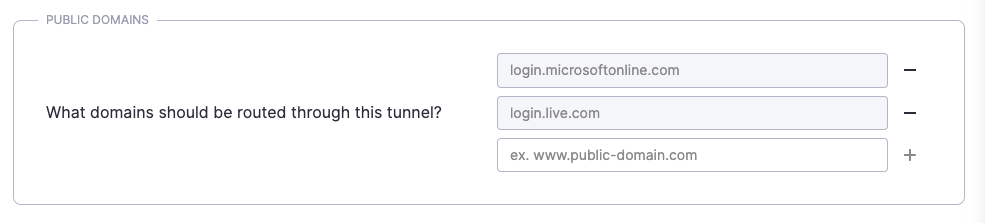
1.2 Configure the Service Tunnel to include the Microsoft domains used for authentication:
login.microsoftonline.com
login.microsoft.com
login.windows.net
auth.microsoft.com
msidentity.com
msftidentity.com
msauth.net
msftauth.net
msftauthimages.net
msauthimages.net
microsoftonline-p.com
phonefactor.net
login.live.com
Where this list comes from. These are the authentication and identity entries that Microsoft currently publishes as required in endpoint sets ID 56 and ID 59 of the Microsoft 365 IP Address and URL web service (verified 2026-07-13, data version 2026052900). Service Tunnel domain entries implicitly include all subdomains, so the parent-domain entries above also cover the hostnames Microsoft publishes as wildcards (for example, msftauth.net covers aadcdn.msftauth.net and logincdn.msftauth.net). The last entry, login.live.com, is now classified by Microsoft as optional (it serves consumer Outlook.com/OneDrive integration for Outlook on iOS/Android and Office for iPad); omit it if your users do not run those clients. Tenants using Microsoft Entra Seamless SSO should also add autologon.microsoftazuread-sso.com.
Also include the public IPv4 ranges listed in endpoint set ID 56 for Microsoft 365 Common and Office Online:
20.20.32.0/19
20.190.128.0/18
20.231.128.0/19
40.126.0.0/18
These four IPv4 blocks are effectively mandatory. In practice, authentication consistently fails without them, so include all four in addition to the authentication domains above. Although the published lists vary, these blocks have been required in every observed deployment. Re-verified 2026-07-13: ID 56 still lists exactly these four IPv4 ranges. Microsoft also publishes IPv6 ranges in ID 56. Leave those out. A Service Tunnel carries IPv4 only, so adding the IPv6 ranges has no effect.
The domains and IP ranges above cover Entra/Microsoft 365 authentication only. Whether that is sufficient depends on whether you use Continuous Access Evaluation — choose the matching option below.
Note: These domains and IP ranges change regularly. For the authoritative, current values, use the Microsoft 365 IP Address and URL web service at https://endpoints.office.com/endpoints/worldwide (see Microsoft 365 IP Address and URL web service), or consult Microsoft 365 URLs and IP address ranges. Do not forward all Microsoft 365 endpoints through CSE; route only the authentication endpoints above, plus any resource endpoints required for CAE.
Choose your routing scope
Authentication only (Continuous Access Evaluation not enabled)
If your tenant does not use Continuous Access Evaluation, the authentication domains and the four IPv4 blocks above are sufficient. No additional resource endpoints need to be routed through the Service Tunnel. Continue to Step 2.
Continuous Access Evaluation enabled (most common)
With CAE, the Microsoft 365 resource services evaluate the IP location policy themselves, so the authentication endpoints above are not sufficient on their own. You must also route the protected apps’ resource-service endpoints through the Service Tunnel. See Continuous Access Evaluation (CAE) below for the recommended starting subset (Exchange Online, SharePoint Online and OneDrive, and Microsoft Teams) and its current limitations, then continue to Step 2.
Starting point, not a final list. The exact minimum CAE endpoint set is still being refined with engineering. The list under Continuous Access Evaluation (CAE) is a working baseline focused on the most common apps; expect to adjust it for your tenant and client platforms.
Step 2: Create a Named location to use in a Conditional Access policy
This step defines the trusted IP range (the CSE Access Tier egress) that Entra will recognize as “behind the Service Tunnel.” The exact menu paths below reflect the Entra admin center at the time of writing; treat Microsoft’s block-access-by-location guidance and network assignment documentation as the source of truth for the current console, which Microsoft can change without notice.
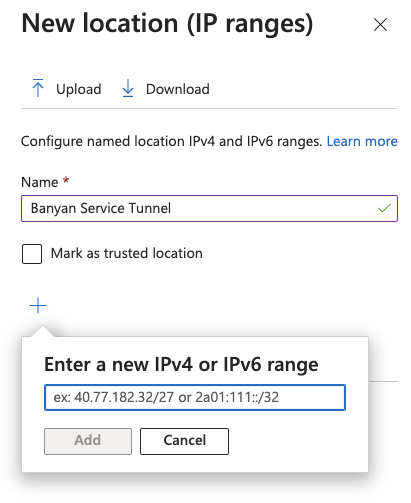
2.1 In the Microsoft Entra admin center, browse to Entra ID > Conditional Access > Named locations, and select + IP ranges location. (Microsoft moved this from the earlier Protection hub.)
2.2 Enter a name (e.g., Service Tunnel) and the IP address(es) of the relevant Access Tiers.
The CSE-maintained egress IPs are published on the Global Edge Network IP Ranges page. Use the values under Global Edge Egress IPs (global_edge_egress_ip_ranges.txt) and paste the whole list into the Named location.
Keep the CIDR notation for Entra. Unlike OneLogin, Entra expects CIDR-form IP ranges in Named locations, so leave the /32 (and other prefix-length) suffixes in place exactly as published.
Mark as trusted location (optional). Microsoft treats this checkbox as optional for this scenario. Marking the egress range as trusted improves Entra ID Protection risk-calculation accuracy and prevents the Named location from being deleted while it carries the trusted designation.
Step 3: Create a Conditional Access policy and assign the location condition
This step ties the Named location to the protected application so that Entra blocks any sign-in not originating from the Access Tier egress IP.
3.1 In the Entra admin center, browse to Entra ID > Conditional Access > Policies, and select New policy.
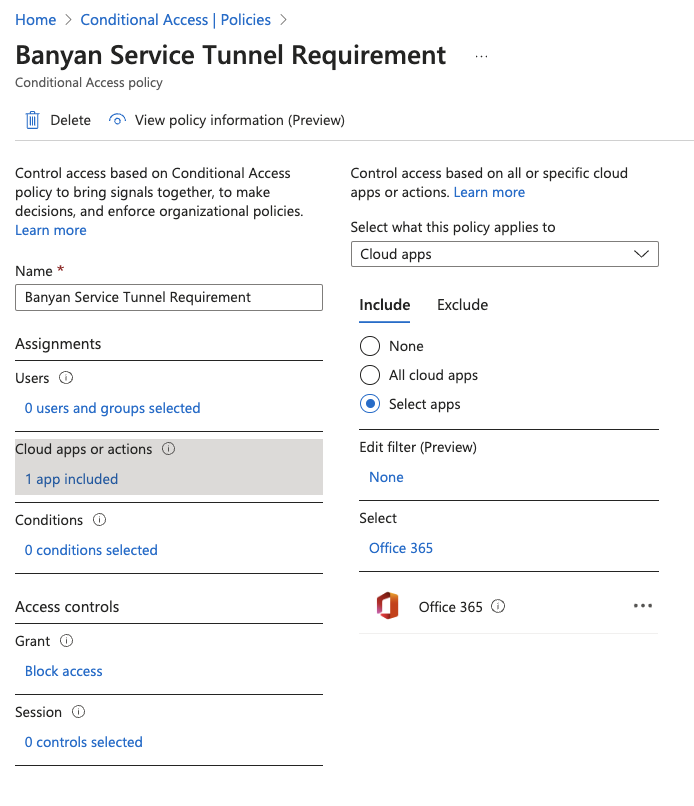
3.2 Enter a name for the policy and include the following configurations:
-
Assignments:
-
Users - Include the users in scope for this policy, and Exclude your emergency-access (break-glass) accounts and any service accounts, per Microsoft’s guidance (see the warning below).
-
Target resources - Under Resources (formerly cloud apps), select the relevant application(s) for which you want to require a Service Tunnel connection before authentication (e.g., Office 365).
-
-
Conditions:
- Network - Set Configure to Yes; under Include, select Any network or location; under Exclude, select the location(s) defined in Step 2. (Microsoft renamed the earlier Locations condition to Network, and it now also appears at the Assignments level; existing policies built on Locations continue to work.)
-
Access Controls:
- Grant - Set to Block access.
3.3 Set Enable policy to Report-only, and Save. After confirming in the sign-in logs that only the intended sign-ins would be blocked, set the policy to On.
Avoid locking yourself out. This policy blocks every sign-in to the selected application(s) that does not come from the Access Tier egress IP. Follow Microsoft’s guidance: exclude your emergency-access (break-glass) accounts under Users > Exclude, and validate the policy in Report-only mode before switching it On.
Expected Behaviour
If the user DOES NOT have the Service Tunnel connection established, they will receive a Microsoft error message indicating that they cannot access the resource (error code 53003, “Access blocked by Conditional Access policies”). The user(s) must have the relevant Service Tunnel connection established in order to access the resource (e.g., Office 365).
Continuous Access Evaluation (CAE)
Continuous Access Evaluation lets Microsoft enforce Conditional Access location (IP) policies in near real time. With CAE, the resource services — Exchange Online, SharePoint Online, Microsoft Teams, and Microsoft Graph — evaluate the IP location policy themselves and reject a token (via a claim challenge) when the request arrives from a non-allowed IP.
This has a direct consequence for CSE IP allowlisting: the trusted IP (the CSE Access Tier egress) must be seen by both Microsoft Entra and the resource provider. The authentication endpoints in Step 1 are not sufficient on their own. You must also route the resource-service traffic through the Service Tunnel so that the resource services see the Access Tier egress IP.
Domains and IP ranges to route through the Service Tunnel
For a CAE deployment, route the Microsoft 365 authentication, resource, and telemetry endpoints that CAE evaluates. The goal is a list that is “good enough” to keep the common Microsoft 365 apps working through the Service Tunnel — not the entire Microsoft endpoint catalog, which is impractical to route.
The set below is a recommended starting baseline for CAE deployments. It includes the required authentication domains, so for a CAE deployment you can use this set in place of the shorter Step 1.2 list (if you routed the optional login.live.com in Step 1.2, carry it over as well). Refine it per tenant (see the caveats that follow). Add these as Public Domains on the Service Tunnel:
microsoftonline.com
login.microsoft.com
login.windows.net
msidentity.com
msftidentity.com
login.microsoftonline.com
enterpriseregistration.windows.net
admin.microsoft.com
security.microsoft.com
auth.microsoft.com
msauth.net
msftauth.net
phonefactor.net
msftauthimages.net
msauthimages.net
microsoftonline-p.com
activedirectory.windowsazure.com
accesscontrol.windows.net
microsoft.com
protection.office.com
aria.microsoft.com
events.data.microsoft.com
flow.microsoft.com
sls.microsoft.com
msocdn.com
onmicrosoft.com
office.microsoft.com
officecdn.microsoft.com.edgesuite.net
officeredir.microsoft.com
autodiscover.<your-tenant>.onmicrosoft.com
Tenant-specific entry: replace <your-tenant> in autodiscover.<your-tenant>.onmicrosoft.com with your organization’s Microsoft 365 tenant name (the label in your *.onmicrosoft.com domain).
Add the same public IPv4 CIDR ranges as in Step 1.2 (required for both the authentication-only and CAE paths):
20.20.32.0/19
20.190.128.0/18
20.231.128.0/19
40.126.0.0/18
You generally do not need to route less-common services (for example, Copilot, Bing, Sway, or Yammer) through the Service Tunnel. For the authoritative, current values, cross-check the Microsoft 365 IP Address and URL web service.
Endpoints vary by client platform. Microsoft uses different endpoints for the web (browser) experience versus the desktop and mobile apps, and some differ across Windows, macOS, Linux, Android, and iOS. Microsoft’s own labelling is also inconsistent (an endpoint marked “Windows” may in fact be for Outlook on Android/iOS). Validate against the platforms your users actually run, and treat the subset above as a starting baseline that you refine per tenant.
Important: Do not forward the entire Microsoft 365 endpoint list through CSE. Route only the authentication endpoints plus the resource endpoints for the services you are protecting.
Requirements and limitations
Based on Microsoft’s current CAE behavior:
- Use the IP-based Conditional Access location condition. CAE does not enforce country/region locations or the legacy MFA Trusted IPs feature in real time.
- Include every egress address that Entra and the resource providers can see. For traffic through the Service Tunnel, those are the IPv4 Access Tier egress addresses from Step 2. Microsoft’s guidance to allowlist IPv6 addresses as well applies only to egress paths in your own environment that reach Microsoft outside the Service Tunnel. A missing address causes intermittent blocks, because the resource provider sees a source IP that is not in the Named location.
- Egress IPs should be dedicated and enumerable. If resource-provider egress IPs are shared or non-enumerable, Microsoft advises against adding them to a trusted location, and CAE falls back to a one-hour token rather than instant enforcement.
- If the total number of IP ranges in your location policies exceeds 5,000, CAE cannot enforce location changes in real time and issues a one-hour token instead. CAE continues to enforce other critical events and policies; only real-time location-change enforcement is lost.
- The Teams calls and chat services do not honor IP-based Conditional Access policies.
Optional: Strictly enforce location policies (preview)
By default, CAE retains a compatibility exception: when Microsoft Entra sees an allowed IP at sign-in but the resource provider later sees a non-allowed IP, the user may keep access on a one-hour token instead of being blocked immediately. Microsoft’s Strictly enforce location policies session control (in public preview as of this writing) removes that exception: the resource provider blocks the request as soon as it arrives from an IP outside the allowlist.
This is the strongest form of the allowlist described in this guide, and it fits the Service Tunnel scenario because the CSE egress IPs are dedicated and enumerable. Before enabling it in the Conditional Access policy (under the policy’s Session controls, Customize continuous access evaluation):
- Confirm that every egress path to Microsoft Entra and to the resource providers (Exchange Online, SharePoint Online, Microsoft Teams, and Microsoft Graph) goes through the Service Tunnel, and that all of those egress IPs are in your Named location. With strict enforcement, any gap becomes an immediate block rather than a fallback token.
- Roll it out to a small test group first. Use the sign-in logs filter IP address (seen by resource) and Microsoft’s Continuous Access Evaluation Insights workbook to confirm that the resource-seen IPs match your Named location before broad enablement.
References
- Microsoft, Microsoft 365 URLs and IP address ranges.
- Microsoft, Microsoft 365 IP Address and URL web service.
- Microsoft, Conditional Access: Block access by location.
- Microsoft, Conditional Access: Network assignment.
- Microsoft, Continuous access evaluation.
- Microsoft, Strictly enforce location policies with continuous access evaluation.