Managed, Registered, and Unregistered Devices
Configure access for Managed, Registered, and Unregistered Devices within the Command Center
- Last validated: Jul 21, 2026
Motivation
Google’s BeyondCorp security model promotes the concept of a “Managed Device,” which is a device that is procured and actively managed by the enterprise. In Google’s BeyondCorp, only managed devices can access corporate applications. A device tracking and procurement process revolving around a device inventory database is one cornerstone of this model.
Similarly, SonicWall Cloud Secure Edge (CSE) espouses a security model where corporate applications should only be accessed by Registered Devices.
Managed, Registered, and Unregistered Devices
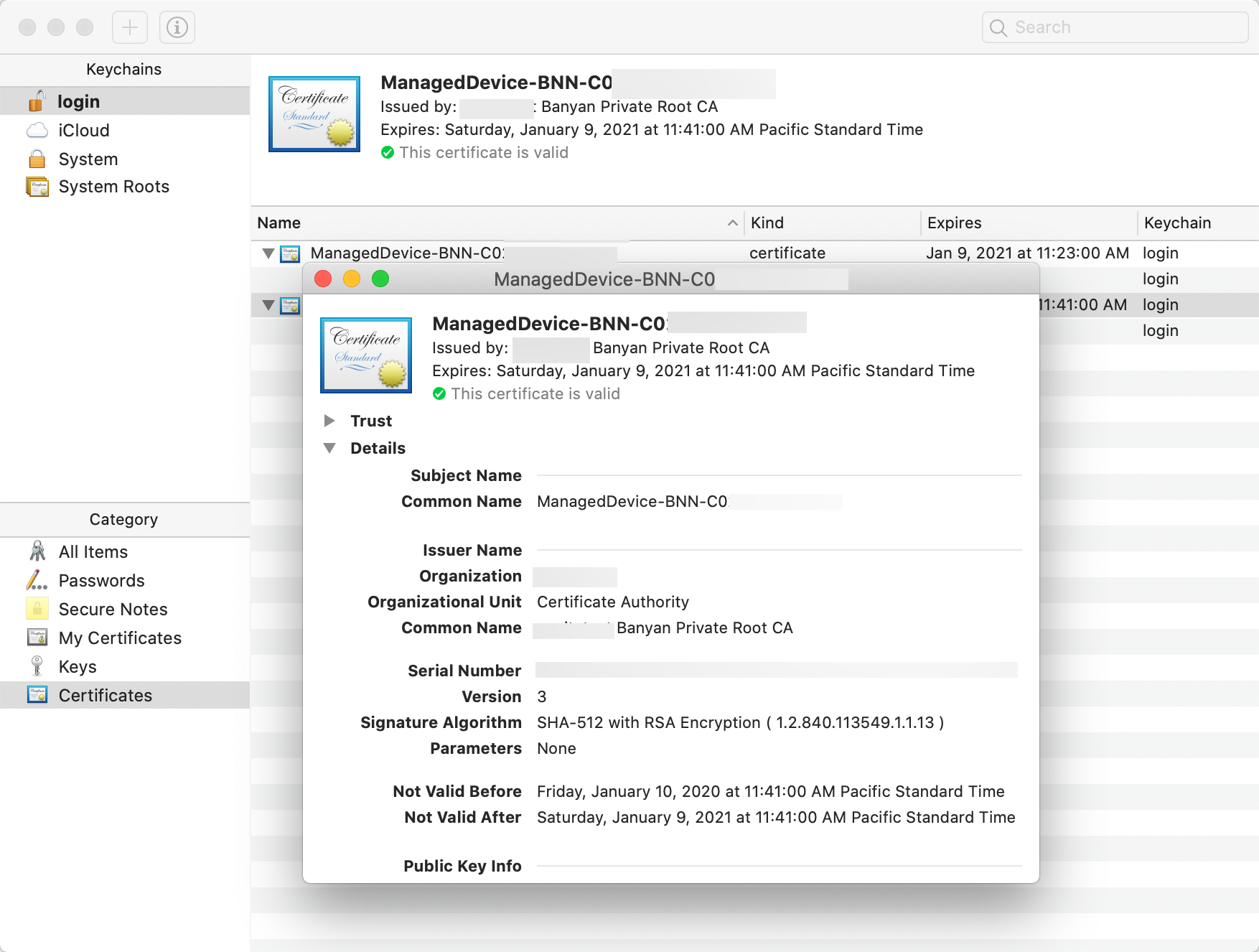
Registered Devices are desktops (macOS, Windows, Linux), mobile devices (iOS/iPadOS, Android), and Chromebooks (via the CSE mobile app) that have a Trusted Device Certificate in their keychain.
Unregistered Devices are desktop and mobile devices that do not have a Trusted Device Certificate in their keychain.
Managed Devices are devices enrolled in your organization’s Device Manager (a UEM/MDM platform such as Microsoft Intune, Jamf, or Workspace ONE UEM). Management and registration are independent properties: a Managed Device becomes a Registered Device once it holds a Trusted Device Certificate — typically distributed through the Device Manager itself — and an employee-owned (unmanaged) device can also become Registered by installing the CSE app.
A device can obtain a Trusted Device Certificate by:
- Installing the CSE desktop app to register the device
- Installing a Trusted Device Certificate via a Device Manager
Manage Registered and Unregistered Devices
By default, CSE’s TrustProvider component only responds to Registered Devices. If an Unregistered Device attempts to make a TLS connection, CSE drops the connection and the device cannot access CSE-secured applications and services.
However, in some scenarios (such as an incremental rollout of the CSE app, or exposing certain services to Unregistered Devices), you need to relax the Device Certificate requirement to allow access to Unregistered Devices.
Registered and Unregistered Device access is managed in the Command Center, both at the organization level and at the service level.
Additionally, the Command Center lists your organization’s Unregistered Devices on the Directory page and displays a count of them on the Reporting page.
Organization-level settings
At the most general level, you can create a policy for your entire organization.
An organization-level policy is applied to all apps and services configured for your organization, and may be superseded by policies set at the service level.
To configure organization-level settings:
-
Log in to your instance of the Command Center.
-
Navigate to Settings > Configuration > Unregistered Devices.
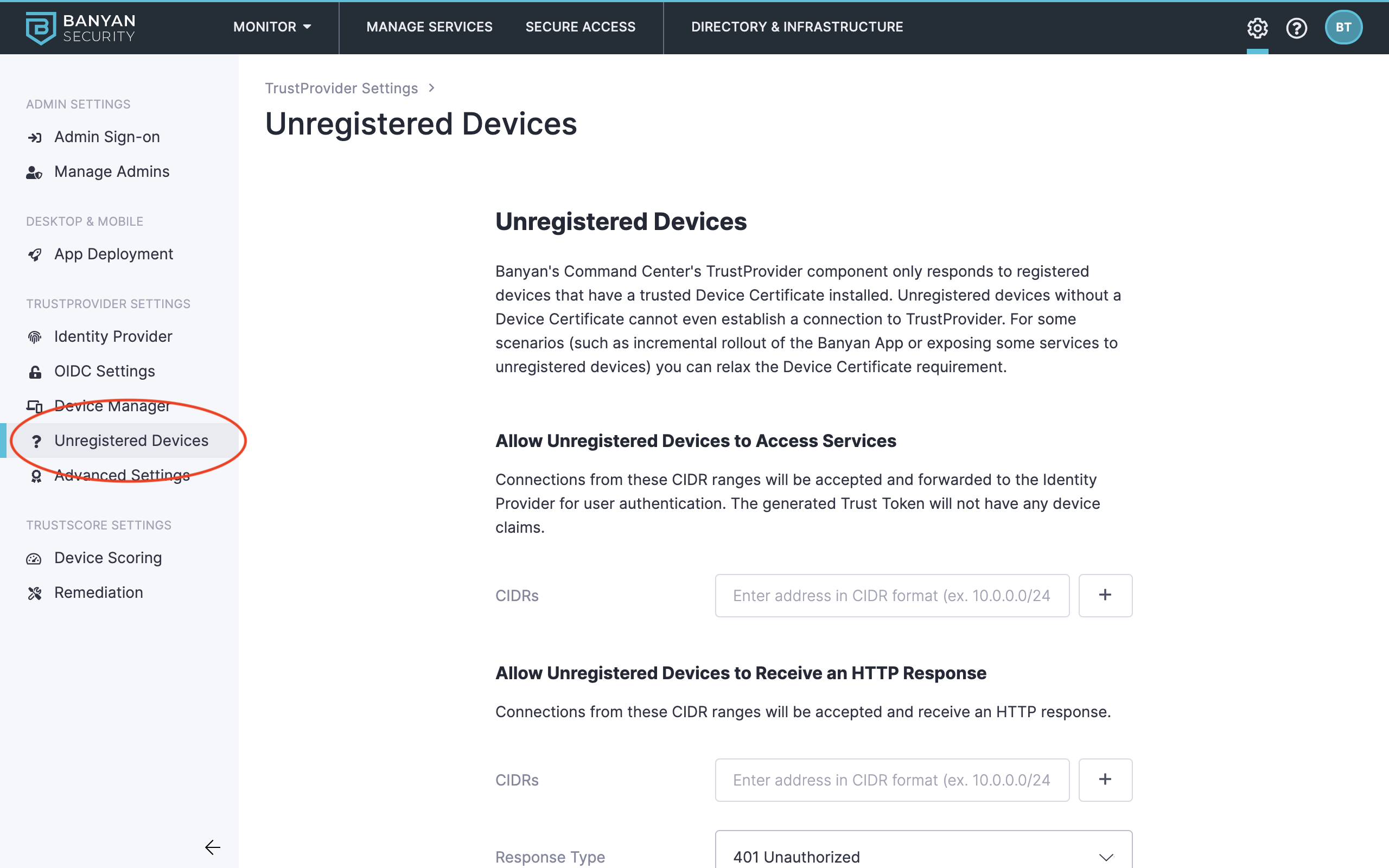
The Allow Unregistered Devices to Access Services section lets an Unregistered Device access CSE-secured services as long as its IP address falls within one of the CIDR ranges you enter. Connections from these CIDR ranges are accepted and forwarded to the Identity Provider for user authentication. The generated TrustToken will not have any device claims, meaning it cannot be associated with a specific device.
The Allow Unregistered Devices to Receive an HTTP Response section accepts connections from the CIDR ranges you enter and returns the configured Response Type:
- A 401 Unauthorized response, with a custom message presented to the device user (such as “Please install the CSE app and register your device”).
- A 302 Redirect to the Redirect Link you configure.
If org-wide Device Trust Verification is enabled, it supersedes these HTTP-response settings.
Service-level settings
If you have configured Allow Unregistered Devices to Access Services for your organization, you can configure service-level settings to grant only Registered Devices access to individual apps and services. You simply create a role that only applies to Registered Devices. Then, you apply that role to specific apps and services so that only Registered Devices are granted access.
Create role
To create a role that only applies to Registered Devices:
-
Log in to your instance of the Command Center.
-
Navigate to Directory > Roles and then select + Add Role.
-
Select User Role.
-
Enter a Role Name and Description.
-
Select + Add Role Attribute and then select By Device Registration.
-
Select Add Role.
Create policy
To create a policy that allows access only to Registered Devices:
-
Navigate to Private Access > Access Policies and then select + Create Policy.
-
Select the policy template that matches the service type you are protecting (for example, Web Policy for a hosted website).
-
Configure the applicable fields and then select the Registered Devices role created in the previous section.
If a Policy specifies a minimum Trust Level (High, Medium, or Low), it automatically blocks all Unregistered Devices — CSE cannot compute a Trust Level for a device that is not registered — regardless of the organization-level or service-level settings.
- Select Create Policy.
Now, only devices with a Trusted Device Certificate should be able to access the service.
View Total Unregistered Devices
The Reporting page shows a high-level breakdown of Unregistered Devices. Under the Devices tile, select Unregistered to dig deeper into Unregistered Devices in your directory.
This breakdown only appears if the organization allows Unregistered Devices at the organization level.
Registered and Unregistered Device Directory
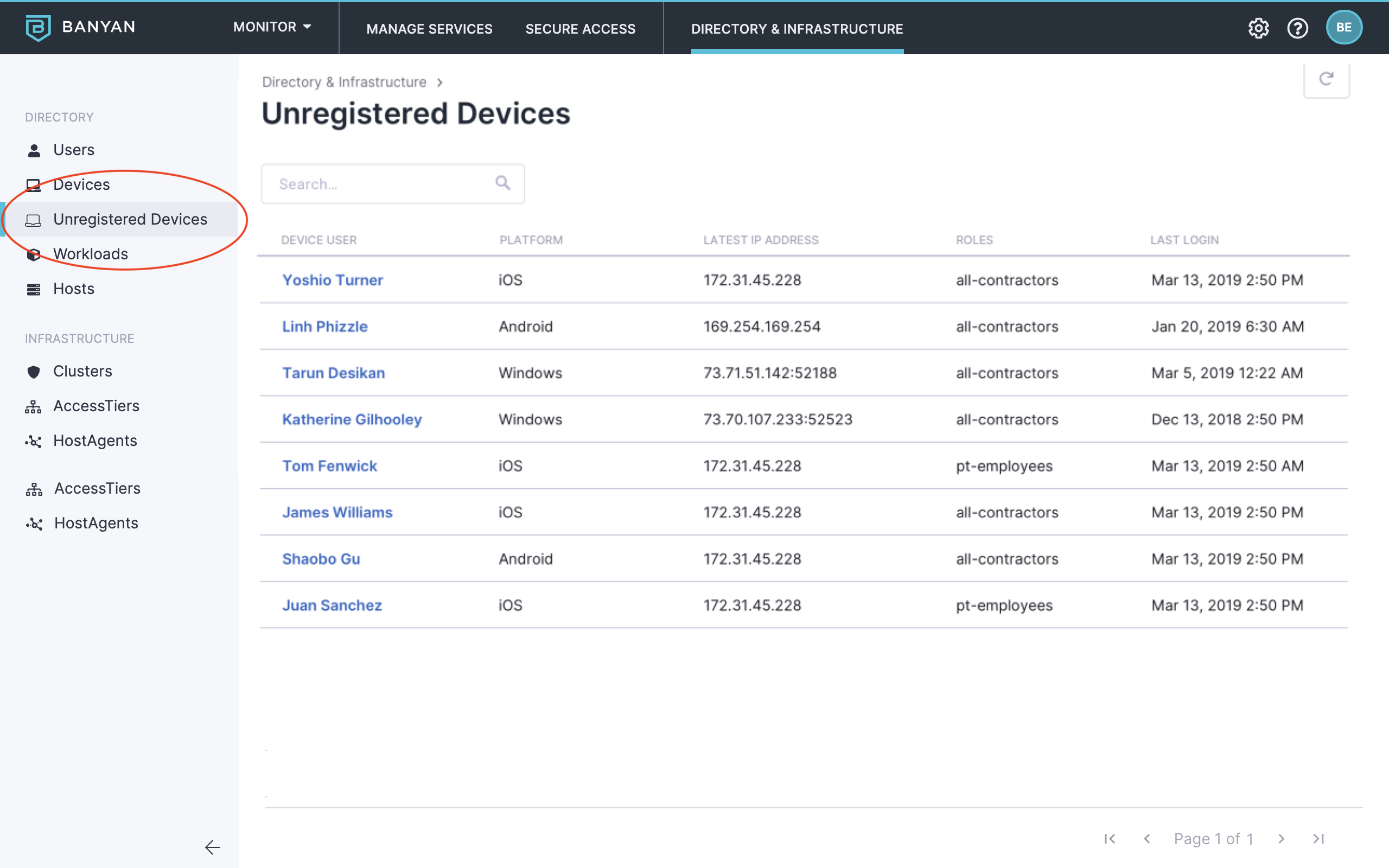
View a complete list of Unregistered Devices and their associated users in the Command Center by navigating to Directory > Unregistered Devices. The list shows each device’s associated user email, platform, latest IP address, roles, and last login.