Automate zero-trust security for your Azure resources using Terraform and CSE
Use CSE's short-lived cryptographic credentials to connect to your Azure resources and enforce zero-trust access control policies.
- Last validated: Jul 15, 2026
- 15 minutes to read
-
Contributors

Overview
Terraform is an open-source infrastructure as code software tool that enables you to safely and predictably create, change, and improve infrastructure. DevOps teams use Terraform to manage cloud resources in Microsoft Azure using the Terraform Azure Provider.
This solution guide shows how you can use Terraform and CSE to automate provisioning access to your Azure resources. CSE enables you to roll out a zero-trust security model using short-lived cryptographic credentials.
The code samples used in this guide are available via the SonicWall Cloud Secure Edge GitHub repo.
Approach
With CSE, your architecture is as follows:
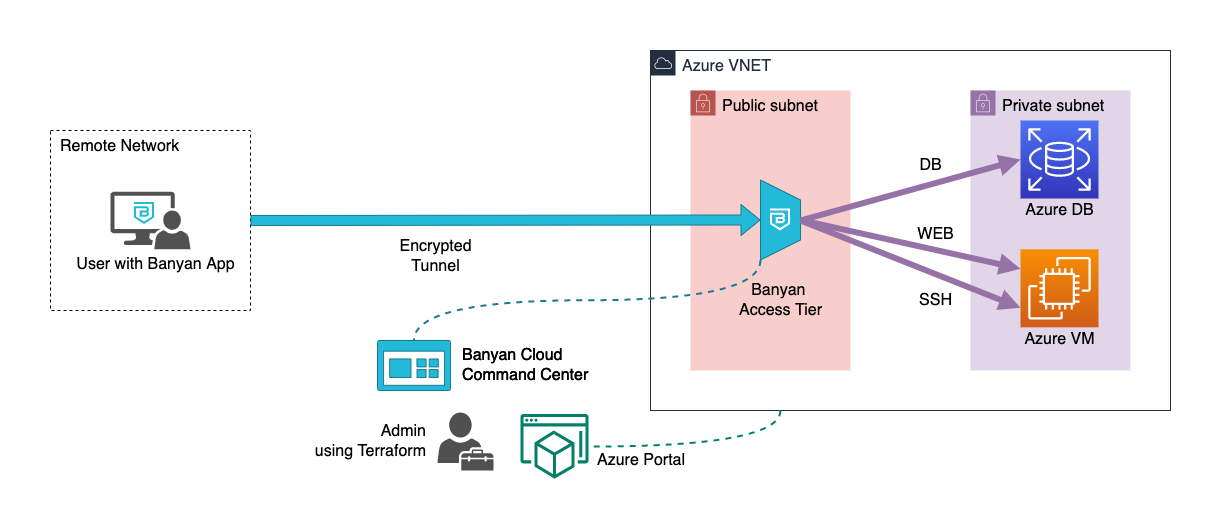
- the CSE Access Tier acts as a gateway to your infrastructure
- the CSE app presents a service catalog to end users, which makes it easy to access services
- the CSE Cloud Command Center is used by admins to publish services and define access policies
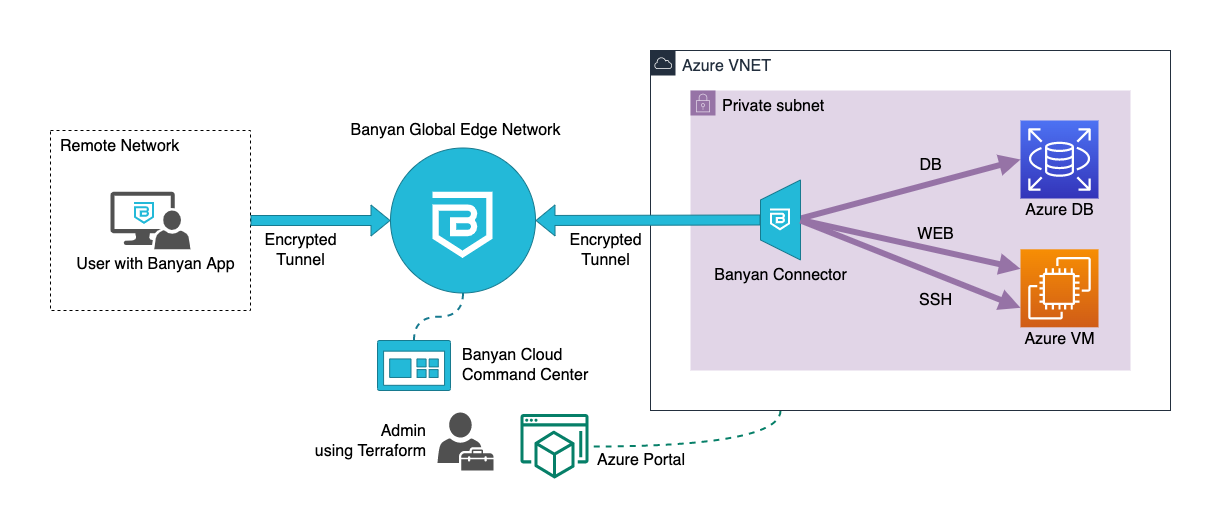
- the CSE Global Edge Network acts as a gateway to your infrastructure
- the CSE Connector, which can sit in your private network, sets up an outbound connection to the CSE Global Edge Network
- the CSE app presents a service catalog to end users, which makes it easy to access services
- the CSE Cloud Command Center is used by admins to publish services and define access policies
The CSE data plane (i.e., the Self-hosted Private Edge or Global Edge Network) functions as a reverse proxy through which you can access your Azure resources, thus terminating TLS, enforcing security policies, and forwarding traffic to the appropriate Azure resources.
Terraform uses APIs, provided by the Azure Console and the CSE Cloud Command Center, to automate the deployment of Azure resources and to publish services for your end users.
Note: The solution guide below assumes you’re using CSE’s Global Edge Network deployment model. If you’re using the Private Edge deployment model with Self-hosted Private Edges, this guide still applies; however, you have to modify the steps below to use a Self-hosted Private Edge instead of a Connector.
Prerequisites
To run this guide, you’ll need the following:
- Azure account with credentials
- An SSH key-pair for authentication into Linux VMs
- Terraform CLI 0.14.9+, configured for Azure provisioning
- CSE account and admin API key, and a device with the CSE Desktop App installed (free with CSE’s Team Edition)
For detailed instructions on how to set these prerequisites up, visit the Prerequisities Details section in the GitHub repo.
Steps
Now, let’s dive into how you can grant secure access to your Azure resources with Terraform CSE in three steps:
- Verify the prerequisites
- Provision the Azure resources
- Access your Azure resources using the CSE app
Step 1. Verify the prerequisites
Start by verifying that you have credentials to manage your Azure resources:
$> az vm list
Also, confirm that Terraform has been installed on your device correctly:
$> terraform -version
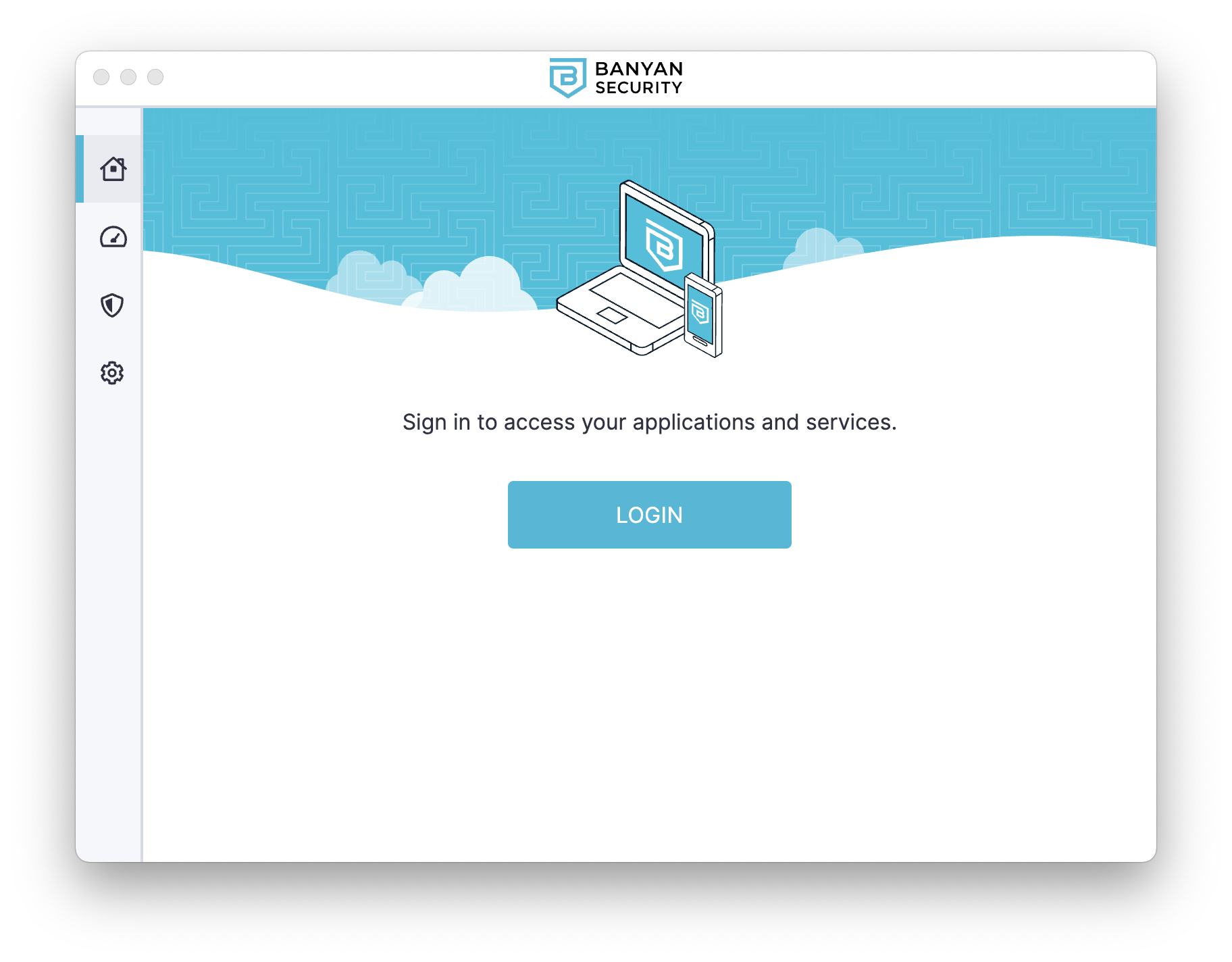
Then, launch the CSE app and ensure you can log in:
Step 2. Provision the Azure resources
Clone the GitHub repo with the Terraform code for this guide, and navigate to the folder:
$> git clone https://github.com/banyansecurity/demo-terraform-azure
$> cd demo-terraform-azure
Initialize the project, which will download the plugins that allow Terraform to interact with Azure and CSE:
$> terraform init
Edit the locals.tf file with details from your environment.
locals {
  name_prefix = "bnn-demo-azure"

  region = "westus3"
  ssh_key_path = "~/.ssh/id_rsa.pub"

  banyan_host = "https://team.console.banyanops.com/"
  banyan_api_key = "YOUR_BANYAN_API_KEY"
  banyan_org = "YOUR_BANYAN_ORG"
}
Provision the resource using apply. When Terraform asks you to confirm, enter yes and then select ENTER.
$> terraform apply
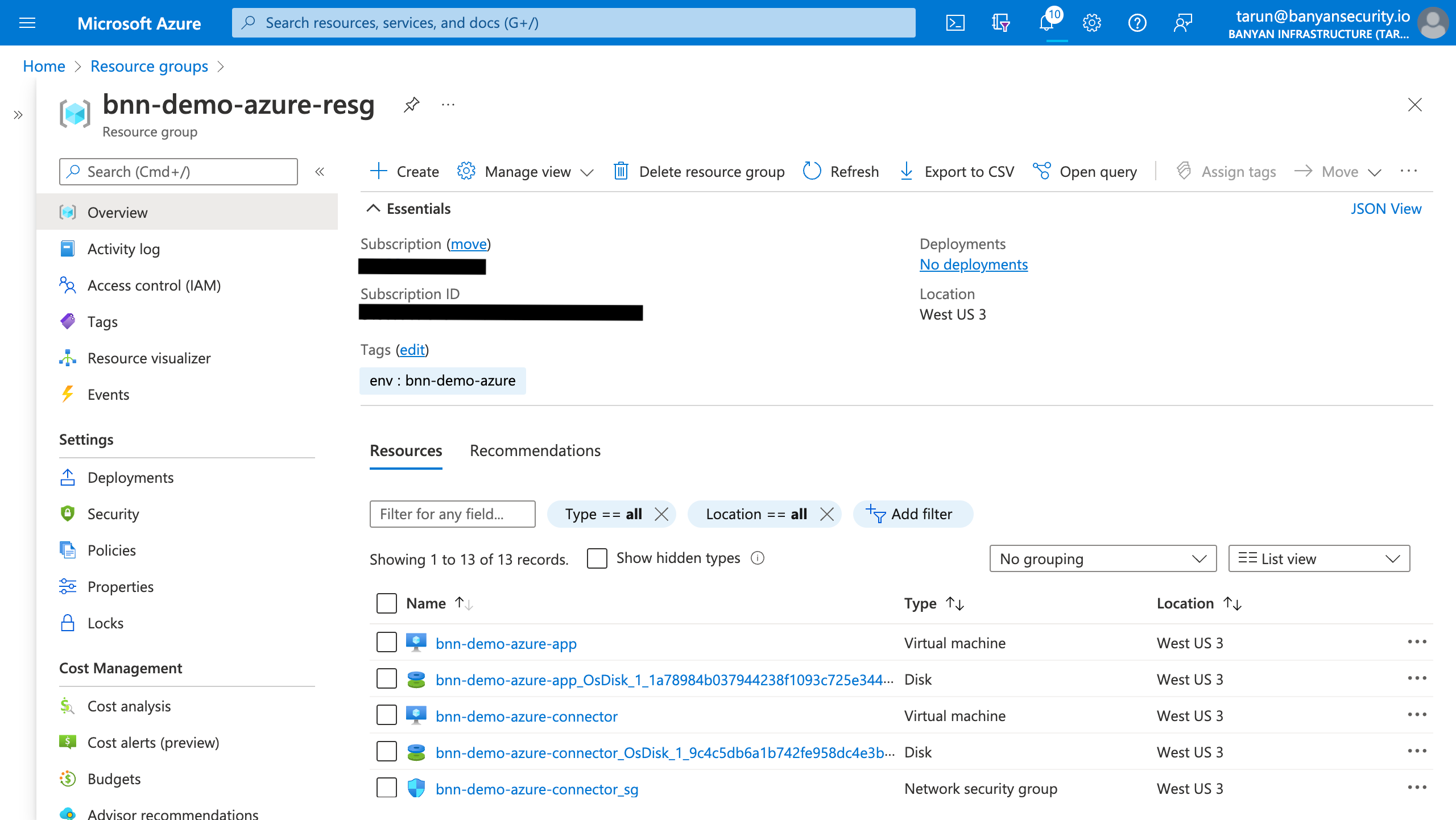
Provisioning can be divided into six steps:
- Network - a new Resource Group with a virtual network and subnet
- Database - an Azure Database for MySQL instance
- Application - a VM instance that runs a demo website container
- CSE Connector - deploy an VM instance with the
connectorto create an outbound connection to the CSE Global Edge network, so you can manage access to your Azure environment - CSE Policies - create a few roles and policies to establish which users and devices can access your Azure environment
- CSE Services - publish the services that are deployed in your Azure environment for your end users
The first three steps get you a basic yet representative Azure environment. The last three steps set up CSE to provide secure remote access to this environment.
Step 3. Access your Azure resources using the CSE app
All of your deployed Azure resources - VM and Database - are in a private subnet with private IPs. They cannot be directly reached from the public internet.
To access your Azure resources from your device, open the CSE app and select a service to connect to it.
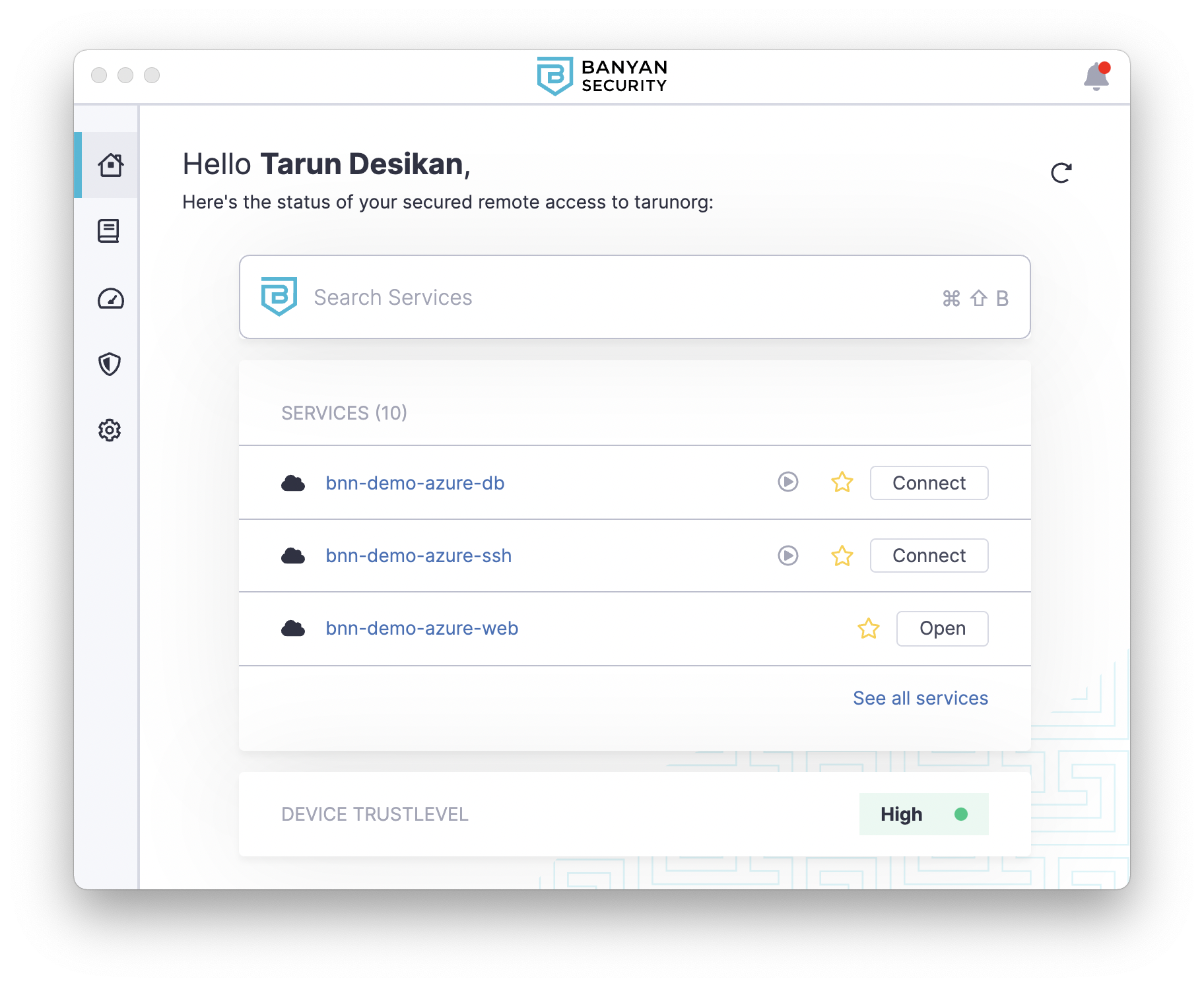
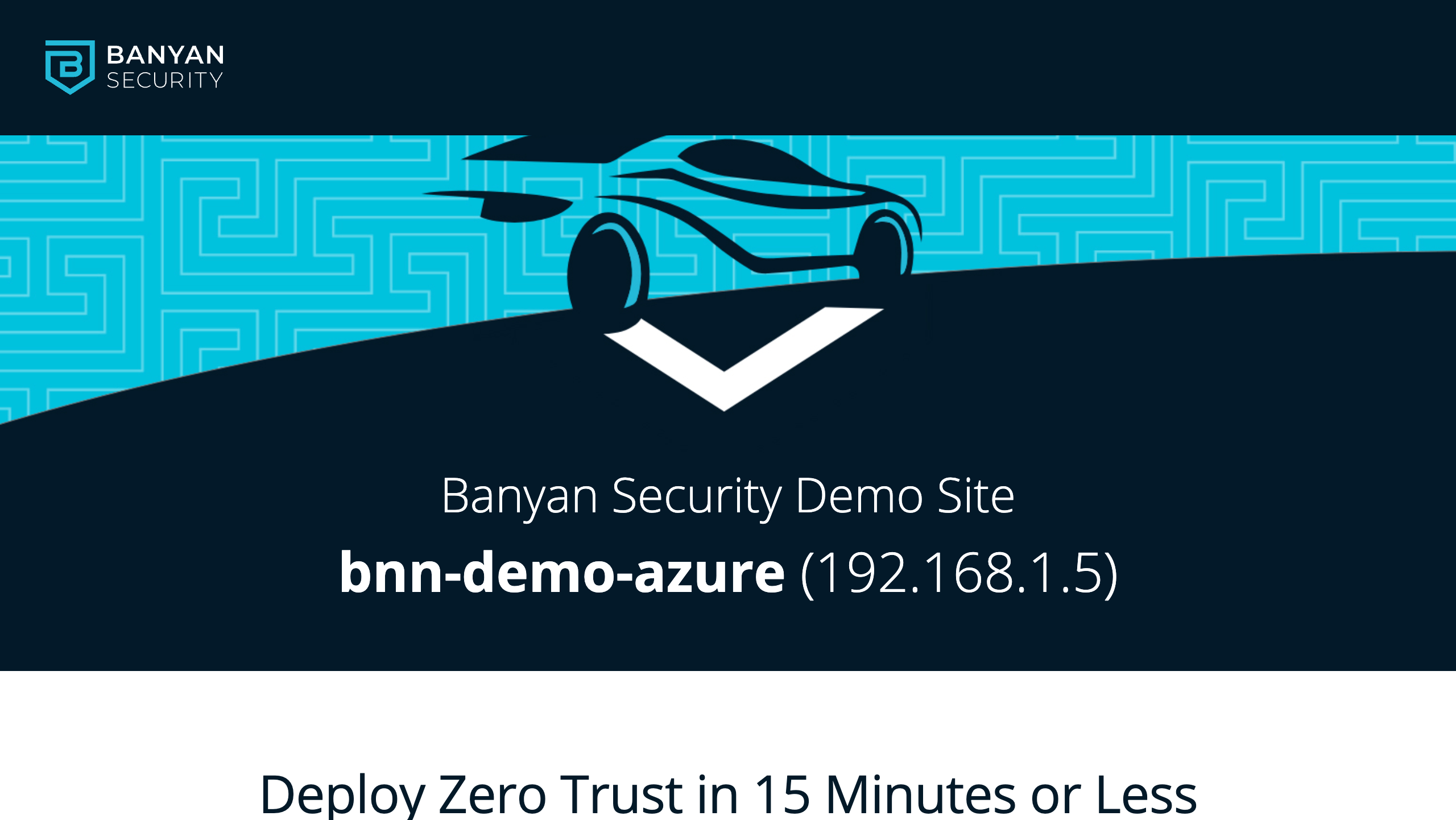
Selecting “Open” on your web application bnn-demo-azure-web will launch a new browser tab and take you the demo site after authentication.
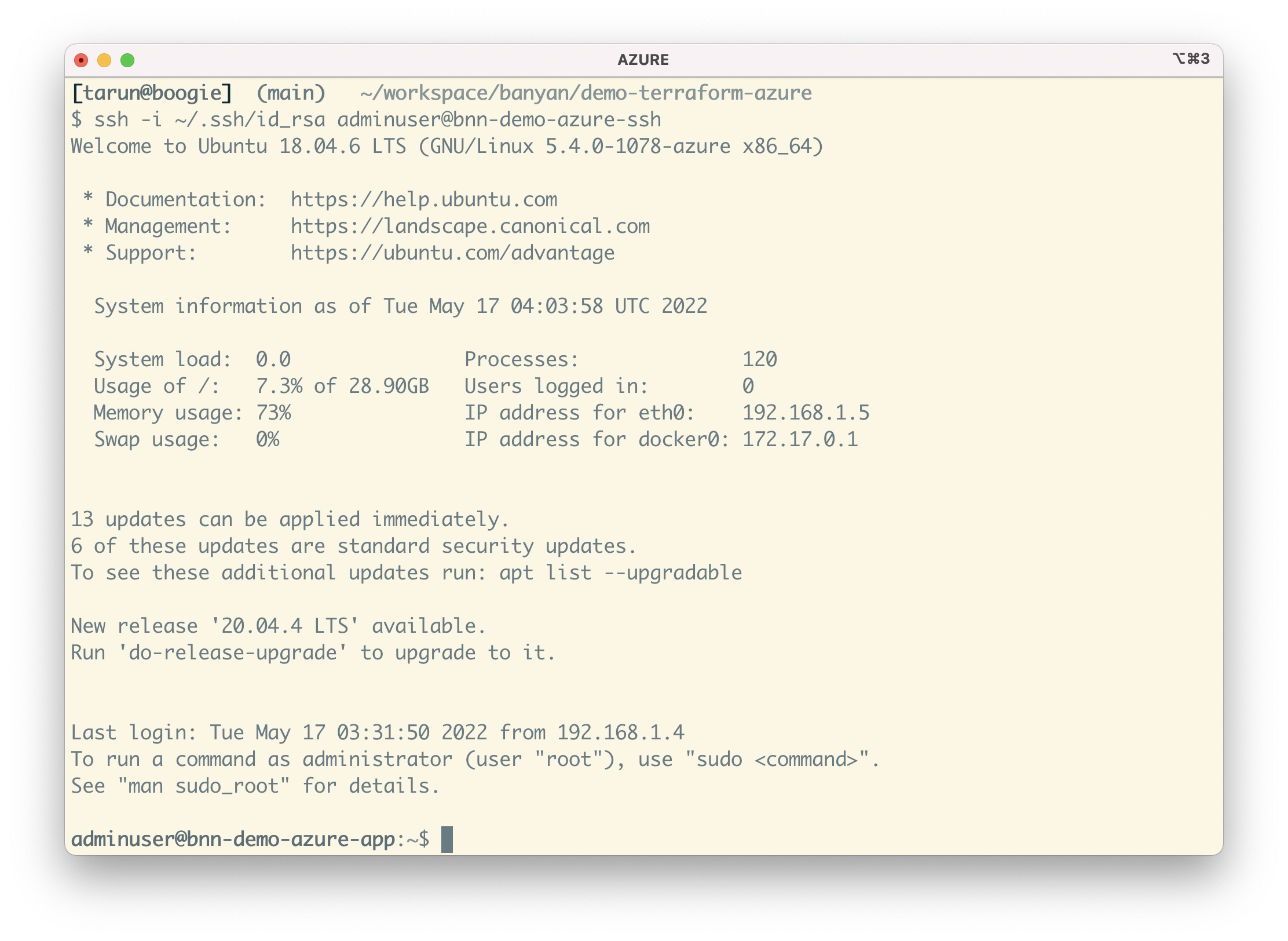
To SSH into the Linux server, select “Connect” on the SSH service bnn-demo-azure-ssh. Then, run the SSH command with your SSH key as the credential:
ssh -i PATH_TO_SSH_KEY adminuser@bnn-demo-azure-ssh
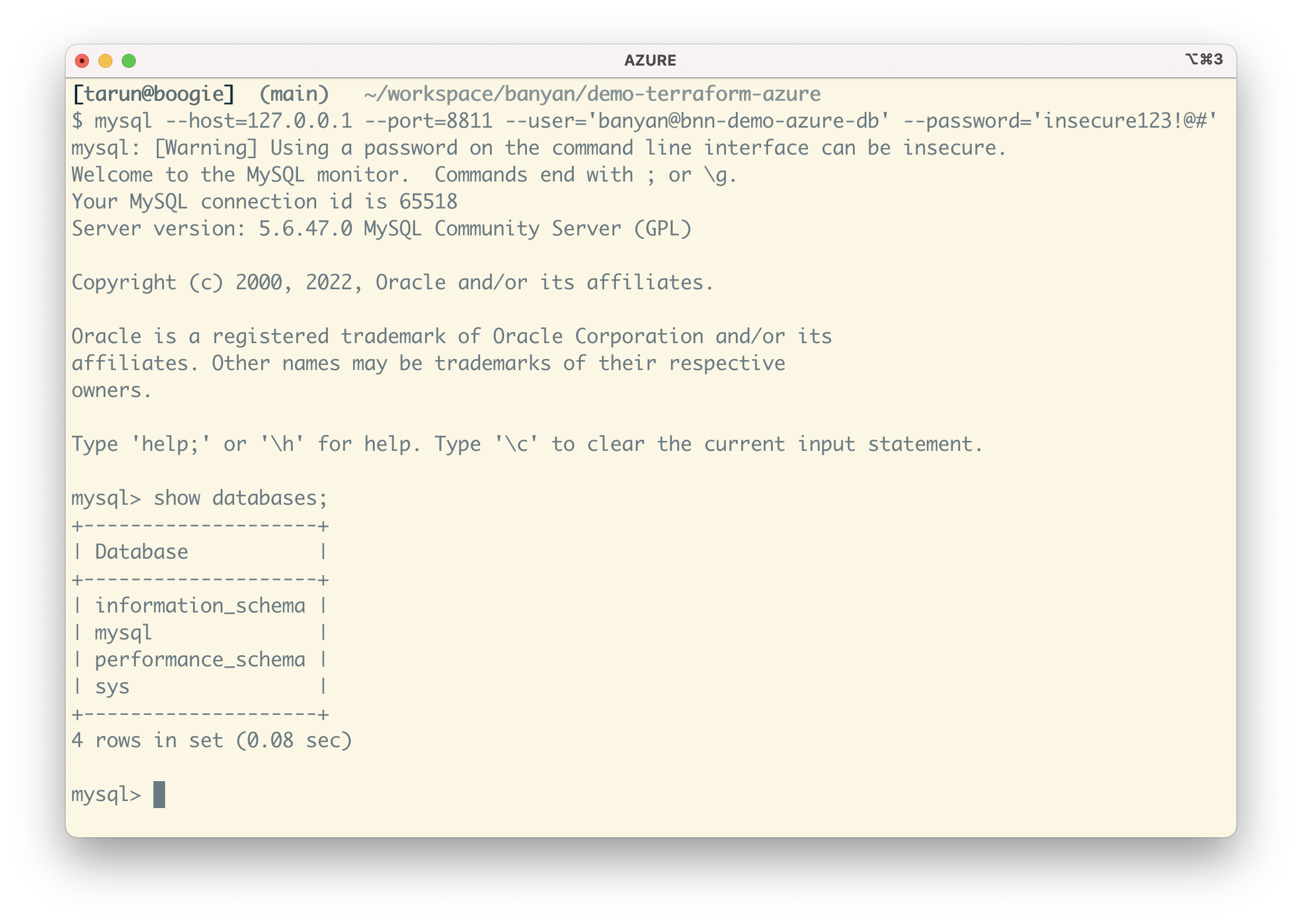
To access your Azure Database instance, select “Connect” on the DB service bnn-demo-azure-db. Then, start your preferred MySQL client and connect to your database at 127.0.0.1:8811, using the credentials (banyan@bnn-demo-azure-db, insecure123!@#) we configured via Terraform:
mysql --host=127.0.0.1 --port=8811 --user='banyan@bnn-demo-azure-db' --password='insecure123!@#'
Behind the scenes, CSE uses short-lived cryptographic credentials to connect you to your Azure resources and a zero-trust security model to enforce access control policies.
Summary
In this guide, you completed the following:
- Provisioned a basic yet representative Azure environment using Terraform. You created a new Resource Group with a subnet, an Azure Database instance, and a VM instance that runs a demo website container.
- Deployed the CSE Connector and created Policies using Terraform. You connected your Azure environment to CSE so you can manage access via roles and policies, establishing which users and devices can access your resources.
- Published Services for your end users using Terraform. Set up CSE to provide secure remote access to this environment.